
Functions: Statements
Sensr Portal allows you to easily generate and publish statements using default statement templates or creating your own.
How To Generate Statements
- Navigate to Functions and click on Statements.
-
The Investment Statements page is organized with existing Statements at the top and statement Templates below.
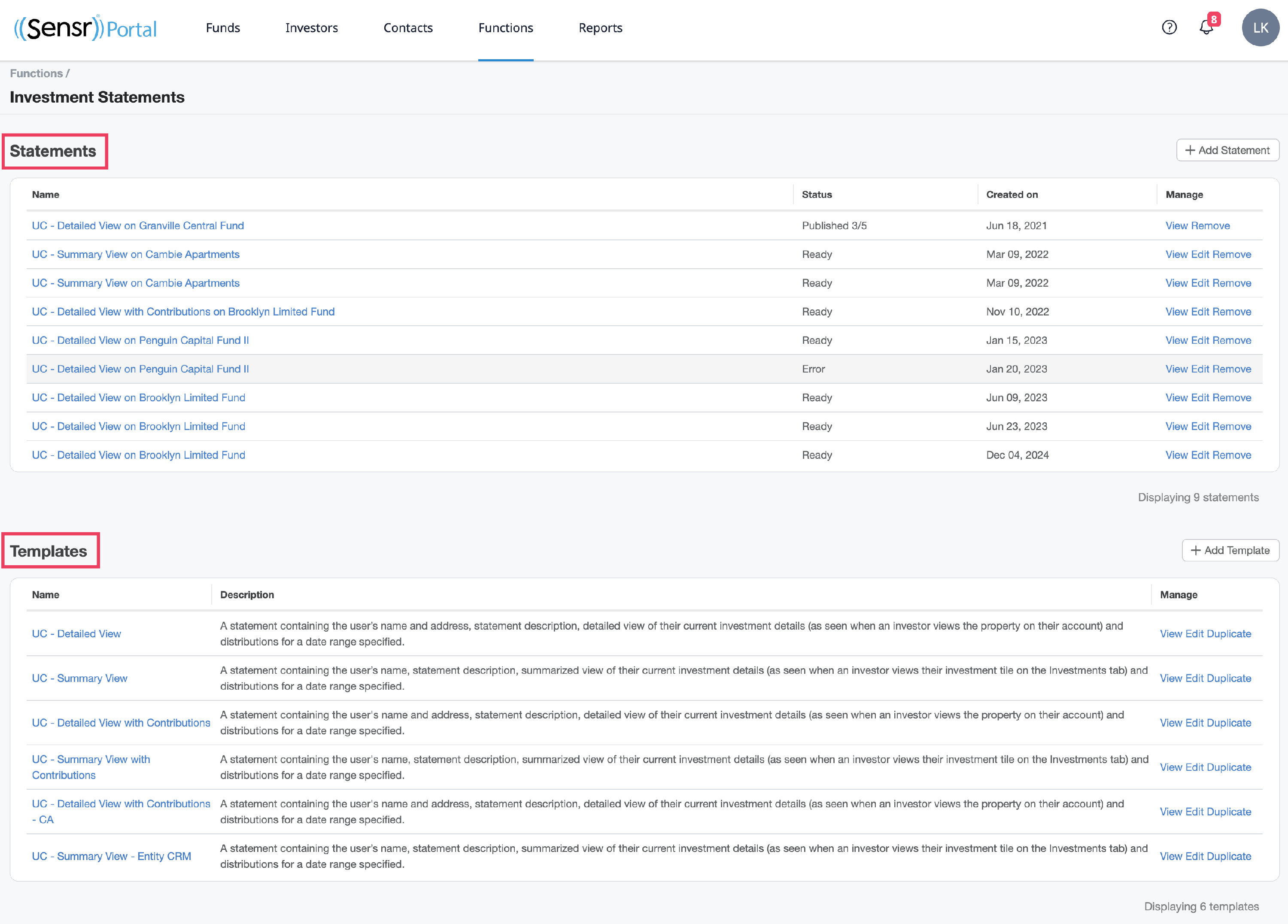
- Options include: use one of the default templates, edit/duplicate an existing template or create a new template or new statement.
- Create a new template
- click +Add Template to begin setting up your own template.
- Complete the fields as preferred. You can refer to the default templates for ideas.
- Click Create Statement Template when ready.
- View/Edit/Duplicate a template
- Click the related option. For example, you may want to simply select View to understand how a template is layed out. Or, you may want to select Edit to modify the existing template to meet your needs. Selecting Duplicate allows you to copy and customize a default template to add to your system.
- Generate a new statement
- Click +Add Statement.
- Select your template, fund, and distribution timeline.
- Wait for the software to generate the statements.
- Select all statements (or a subset), and publish to the investment files.
- Create a new template
NOTE: To add dynamic start and end date fields, add {start date} and {end date} to your templates.
For a list of all available CRM fields that can be used in statements, please see below:
- {full name}
- {user}
- {entity}
- {property name}
- {tile view}
- {distributions}
- {address}
- {details view}
- {contributions}
- {distributions}
- {start date}
- {end date}