
Functions: Communications - Newsletter Templates
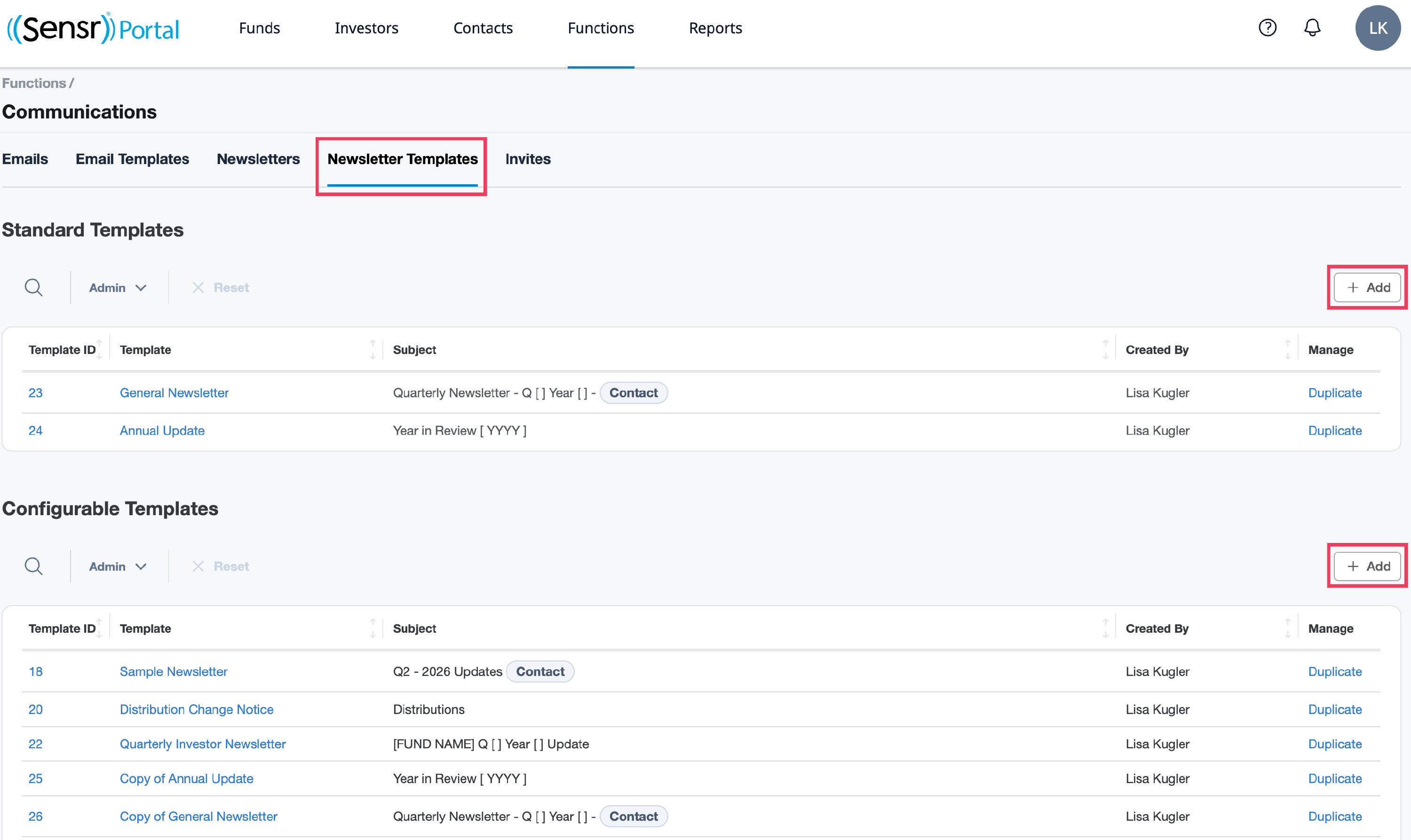
The Newsletter Templates tab is located under the Functions > Communications. Here admins can create email and newsletter templates to use when preparing communications. Templates can be duplicated, edited, and saved to support recurring scenarios.
- Standard Templates
- Configurable Templates
- Create a New Newsletter Template
- Edit, Delete or Duplicate a Template

Standard Templates
Standard templates are created by the Sensr Portal team per admins needs. For changes or edits please contact the Sensr Portal team. *A Standard Template can be duplicated by admins, however, it automatically becomes a Configurable Template as indicated below.

Configurable Templates
Configurable templates can be created, edited, duplicated and deleted by admins as needed.
Create a New Newsletter Template
- Navigate to the Functions > Communications > Newsletter Templates page.
-
The page is divided into two sections: Standard Templates and Configurable Templates. To create a new template, click the +Add button located above the table. *Only Portal Support can add a Standard template.
- On the New Template page, complete the form.
- Name - template name
- Subject - template subject
- From - the sender email address *visible based on portal configuration
- Add Variable - included in the Newsletter subject
- Body - configure the template message
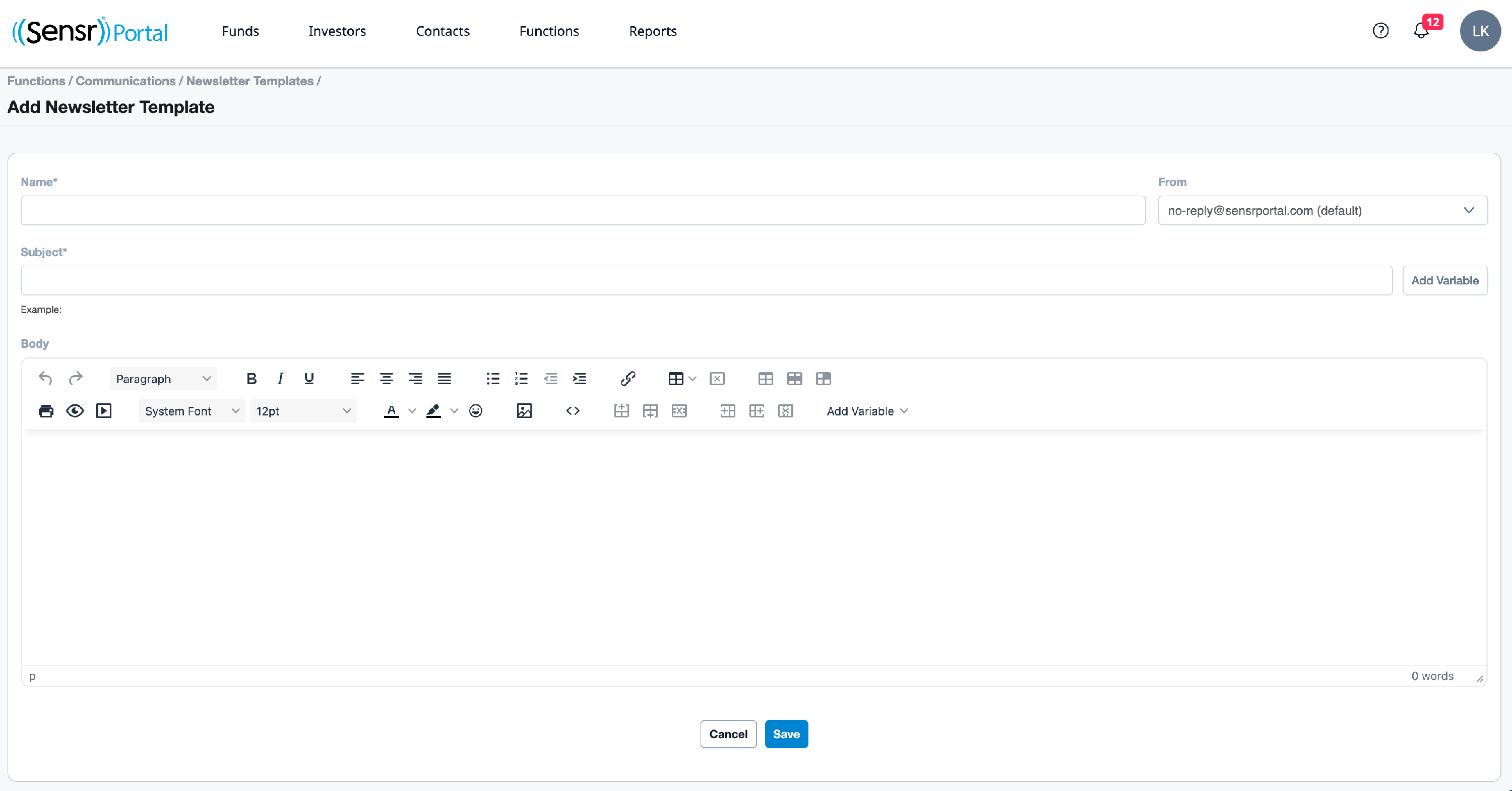
- Click Save button when finished.
Edit, Duplicate and Delete a Template
Pay close attention to the differences between each option below:
| Function | Description | Note |
|---|---|---|
| Edit | Modify the template as needed before saving. | *Only Portal Support Can Edit a Standard template. |
| Delete | To confirm, click OK in the pop up: Are you sure you want to delete this template? This is an irreversible action. | *Only Portal Support Can Delete a Standard template. |
| Duplicate | Available for Standard and Configurable templates. This allows admins to duplicate the template to edit accordingly and save as a new template. Click OK in the pop up: Create a duplicate of "X newsletter template? | *If an admin duplicates a Standard template, it is automatically saved as a Configurable template. |
- Click the Template ID or Template name to open the template in Edit mode and access any of the options listed above.

- Refer to the detailed options above. Be sure to click Save when completed.
