
Functions: Communications - Email Templates
The Emails Templates tab is located und Functions > Communications. Here admins can create email templates to use when preparing communications. Templates can be duplicated, edited, and saved to support recurring scenarios.
- Standard Templates
- Configurable Templates
- Create a New Email Template
- Edit, Delete or Duplicate a Template

Standard Templates
Standard templates are created by the Sensr Portal team per admins needs. For changes or edits please contact the Sensr Portal team.

Configurable Templates
Configurable templates can be created, edited, duplicated and deleted by admins as needed.
Create a New Email Template
- Navigate to the Functions > Communications > Email Templates page.
-
The page is divided into two sections: Standard Templates and Configurable Templates. To create a new template, click the +Add button located above the table. *Only Portal Support can add a Standard template.
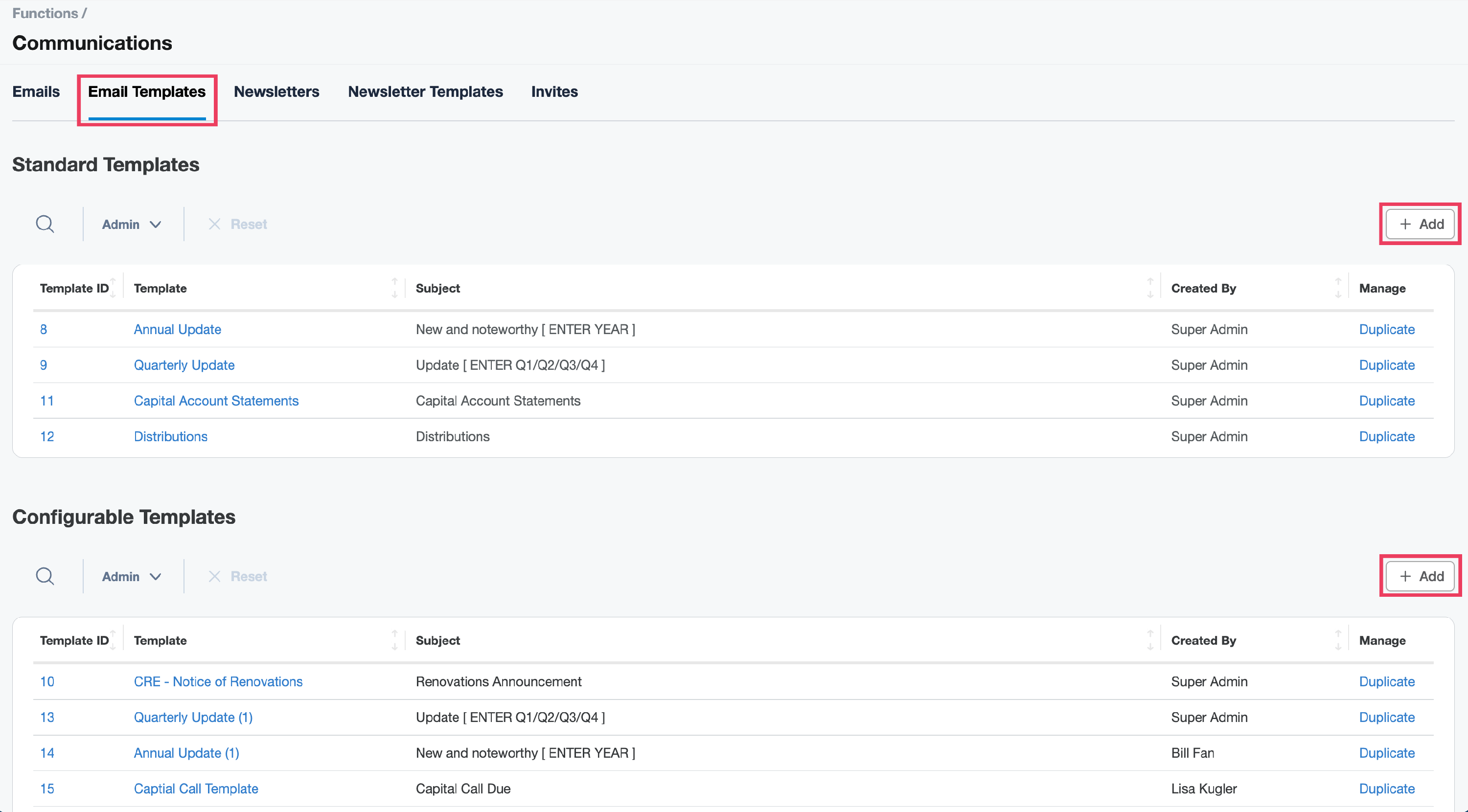
- On the New Template page, complete the form.
- Name - template name
- From - the sender email address *visible based on portal configuration
- Subject - template subject
- Add Variable - included in the Newsletter subject
-
Body - configure the template message
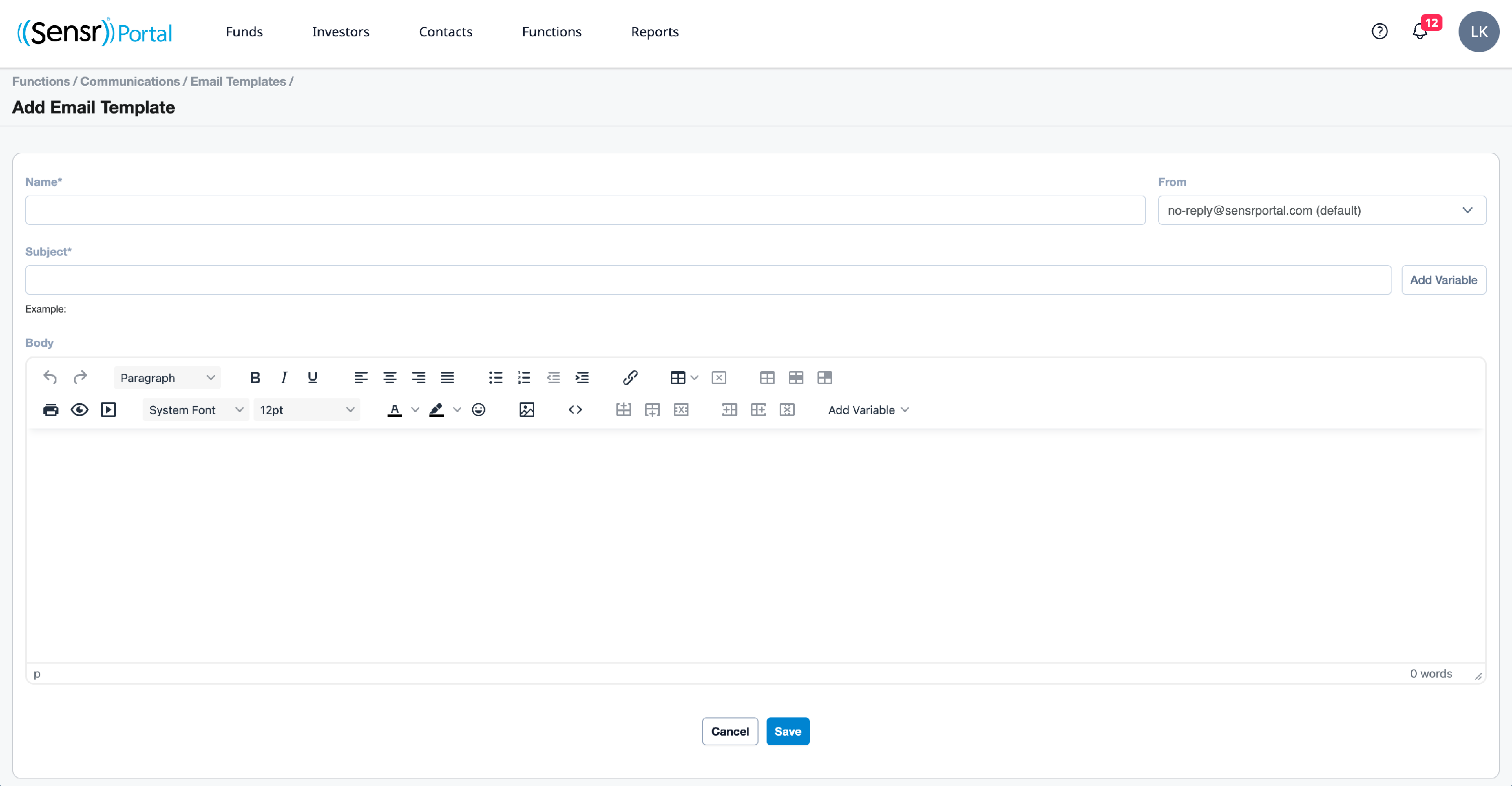
- Click Save when finished.
Edit, Delete or Duplicate a Template
Pay close attention to the differences between each option below:
| Function | Description | Note |
|---|---|---|
| Edit | Modify the template as needed before saving. | *Only Portal Support can Edit a Standard template. |
| Delete | To confirm, click OK in the pop up: Are you sure you want to delete this template? This is an irreversible action. | *Only Portal Support can Delete a Standard template. |
| Duplicate | Available for Standard and Configurable templates. This allows admins to duplicate the template to edit accordingly and save as a new template. Click OK in the pop up: Create a duplicate of "X email template? | *If an admin duplicates a Standard template, it is automatically saved as a Configurable template. |
-
Click the Template ID or Template name to open the template in Edit mode and access any of the options listed above.
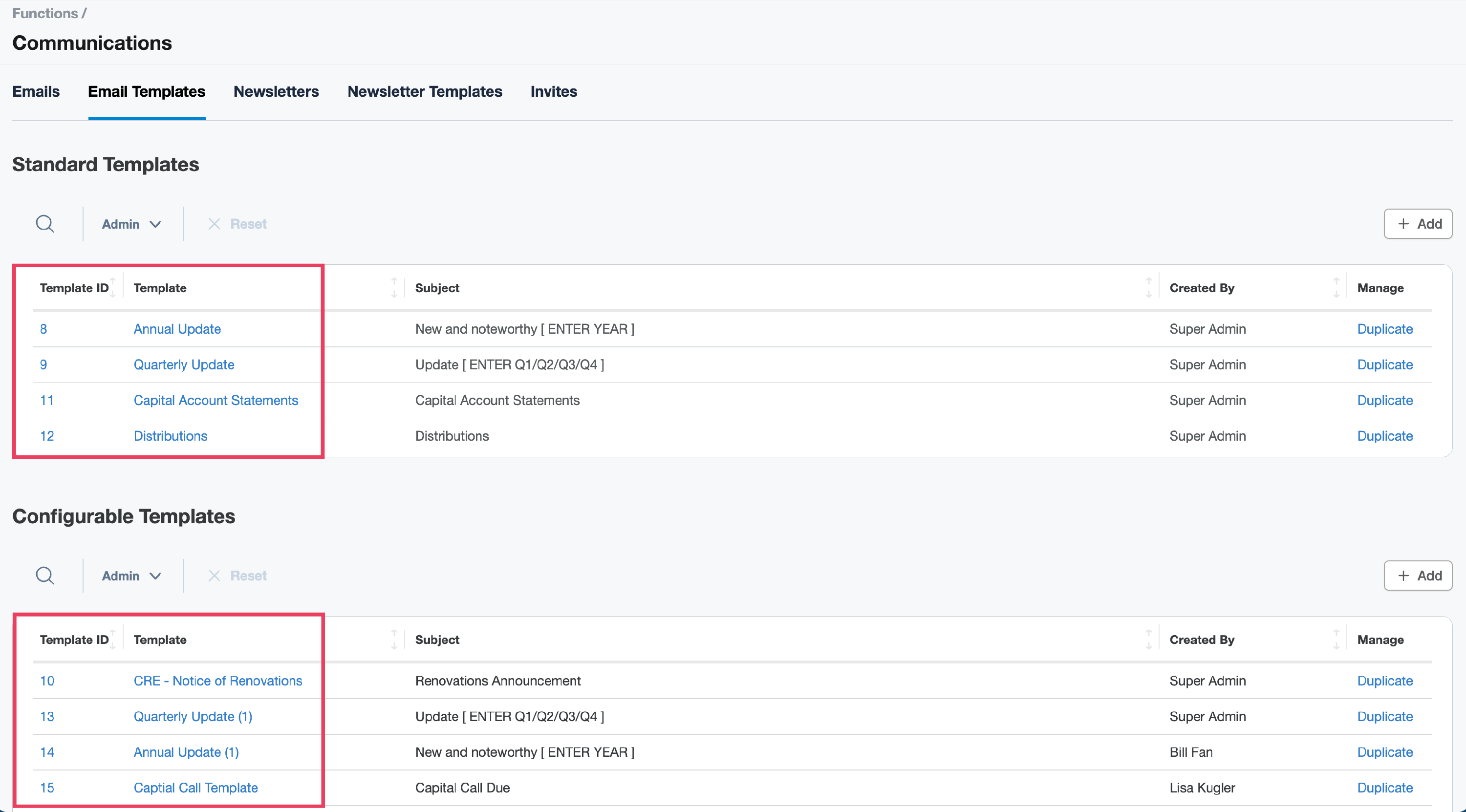
- Refer to the detailed options above. Be sure to click Save when completed.
