
Functions: Tags
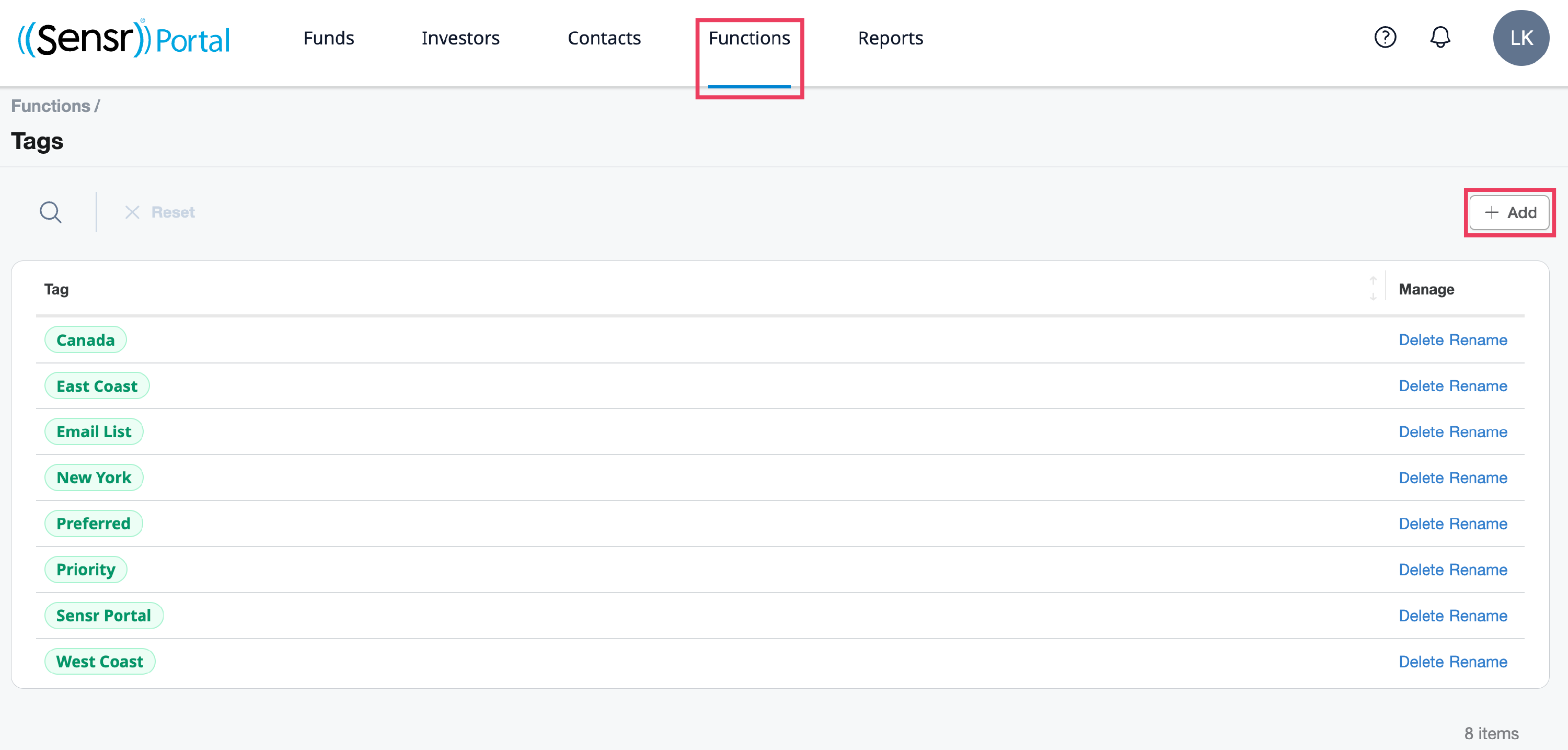
Tags are a helpful tool for admins to group and filter contacts to support various workflows. Accessible from the Functions menu, Tags are configurable which means new tags can be added, renamed or deleted, and then assigned to contacts (and removed) individually or in bulk.
Add a Tag
To add a tag, click the +Add button, complete the name field in the popup and click Save.
Assign Tags
Tags can be assigned to a specific contact individually via the Edit Contact Details function or in bulk. For information on assiging tags in bulk, click here.
-
From the Contacts page, select a contact and click Edit Contact Details.

-
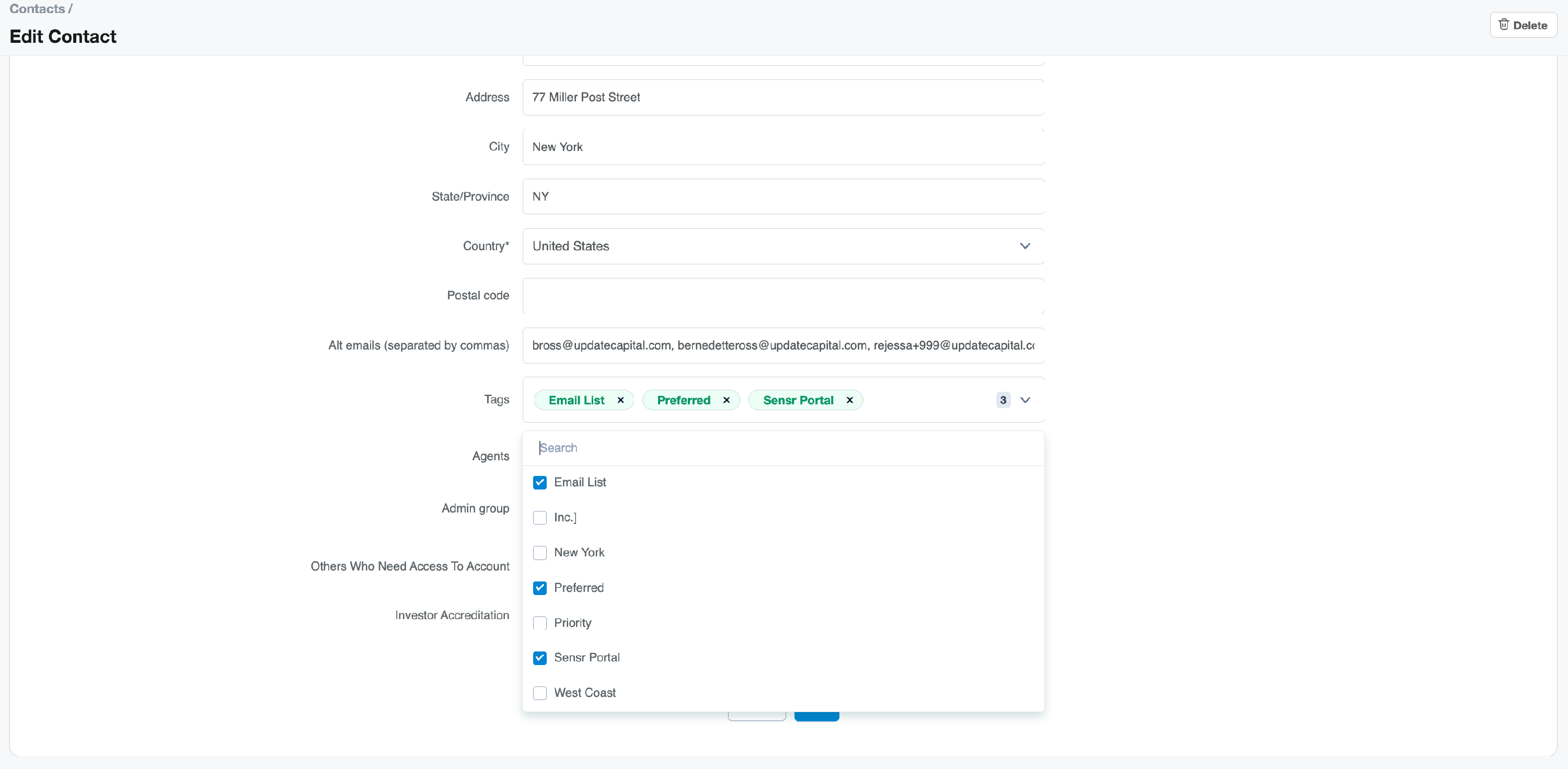
In the Tags menu, use the checkboxes to select tags.
-
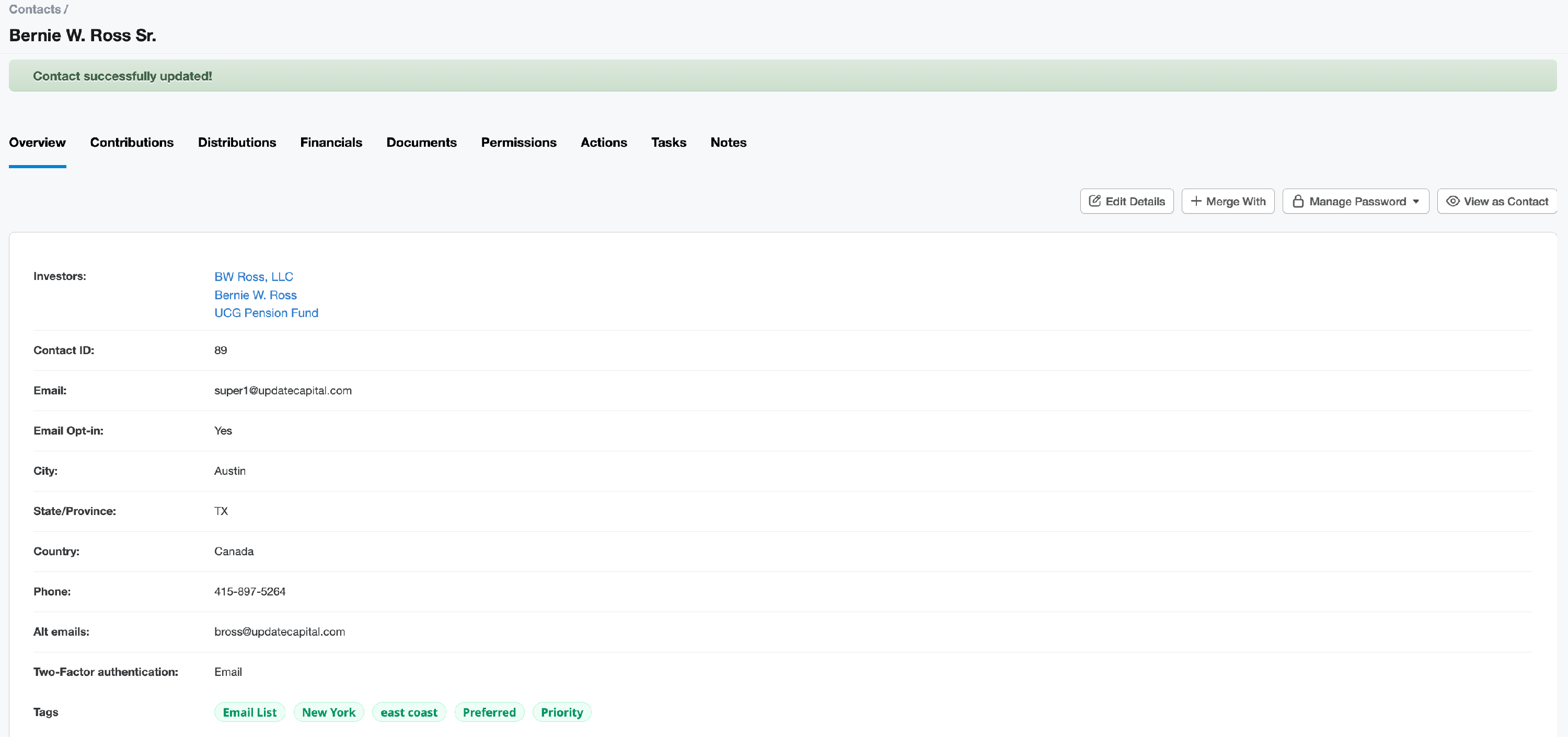
Click Save. A green banner appears to notify of successful tag assignment.

Bulk Assign Tags
Admins can assign Tags in bulk on the main Contacts page using the Download button to export the current contact list, assiging or updating each contact’s tags in the file, and saving it. Then click Upload to import that file back to the portal so the tags are applied to the related contacts in bulk.
Remove Tags
Tags can be removed from a specific contact individually via the Edit Contact Details function or in bulk. For information on assiging tags in bulk, click here.
- From the Contact Details page: Overview tab click Edit Details.
-
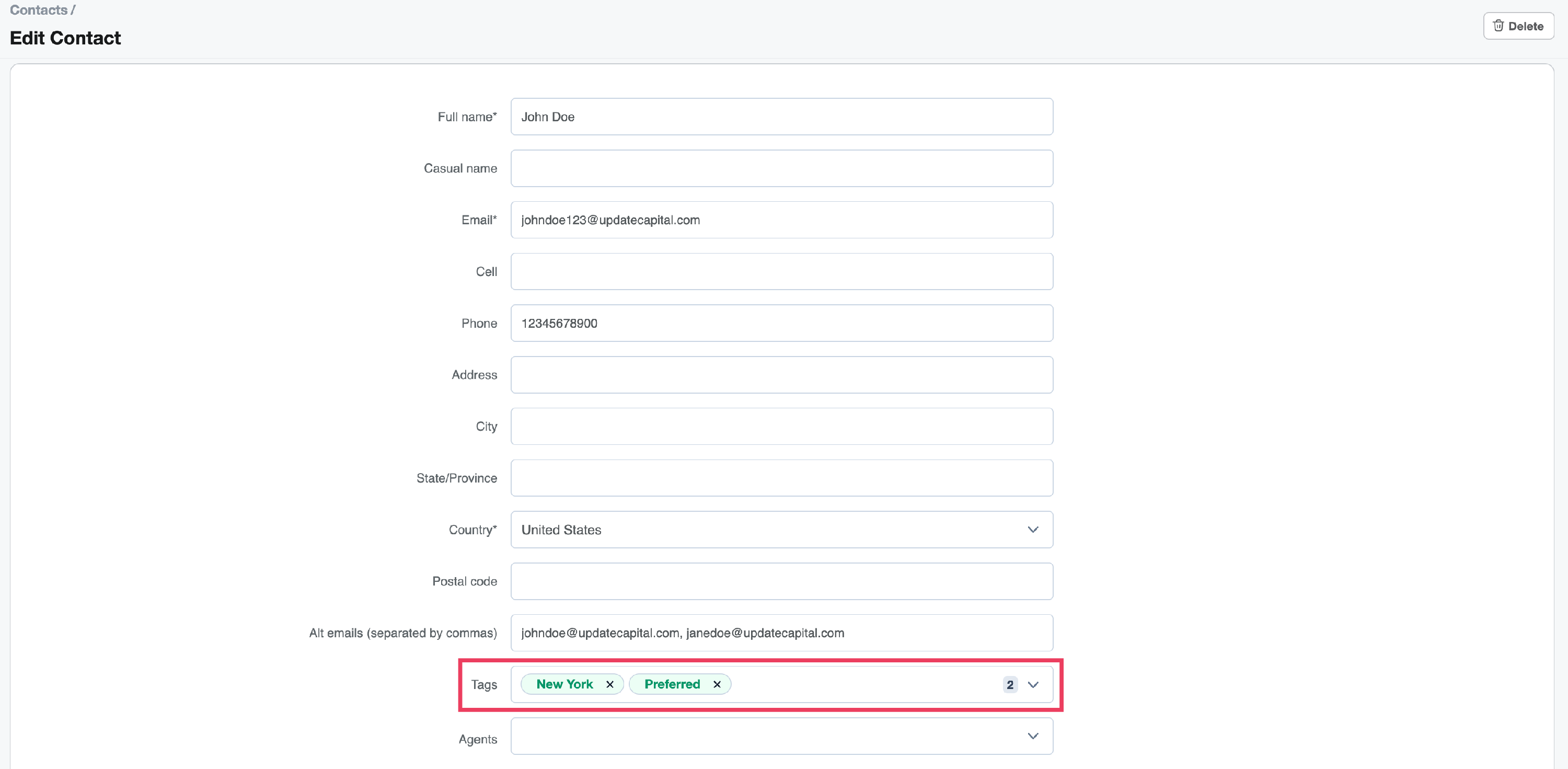
Scroll to the Tags section, locate the related tag and click the X to remove.
- Click Save.
Bulk Remove Tags
Admins can remove Tags in bulk on the main Contacts page using the Download button to export the current contact list, remove the tags for the related contacts in the file, and saving it. Then click Upload to import that file back to the portal so the tag removals are applied in bulk.