
Functions: Permissions - Contacts
IMPORTANT: By default, the permissions for contacts (including data, folder - documents and folder - email) are disabled and required to be enabled via the functionality described below.
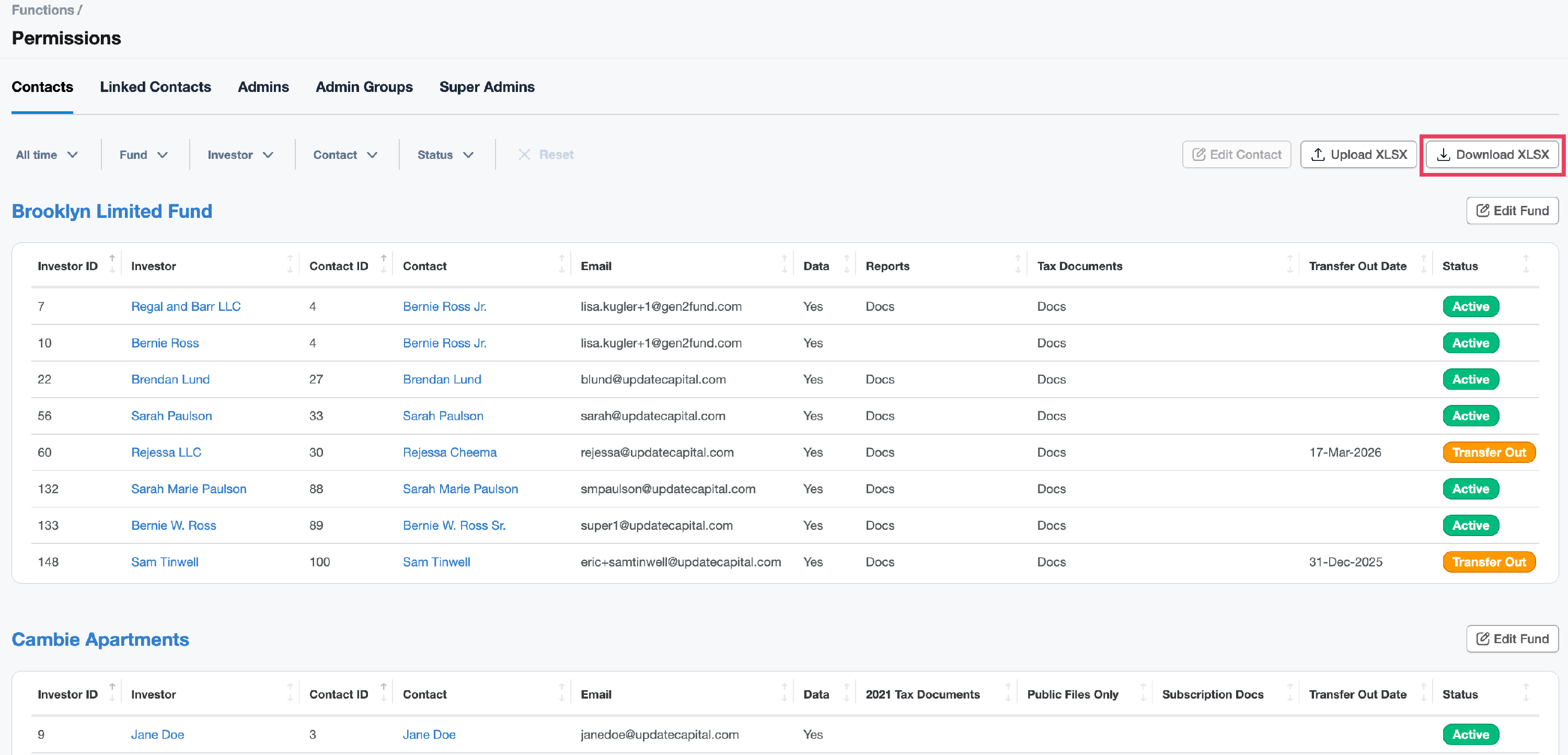
Contact Permissions is located in Functions > Permissions. You can also access Contact Permissions at the fund level on the Fund Page: Permissions Tab. This feature allows you to control contact permissions over data, documents and email and set transfer out date as detailed below.

Types of Contact Permissions
- Data permissions control access for financial data on the Investor View including dashboard, pages, tabs.
- Documents permissions control access to documents in specific folders.
- Email permissions control whether or not a contact can receive a notification regarding a document in a specific folder.
- Transfer Out permissions control access to documents and data up until the transfer date.
TIP: For more information on the Transfer Out feature, click Functions: Permissions - Transfer Out.
Edit Permissions for a Single Contact
Edit Permissions from the Fund Page
Edit Permissions
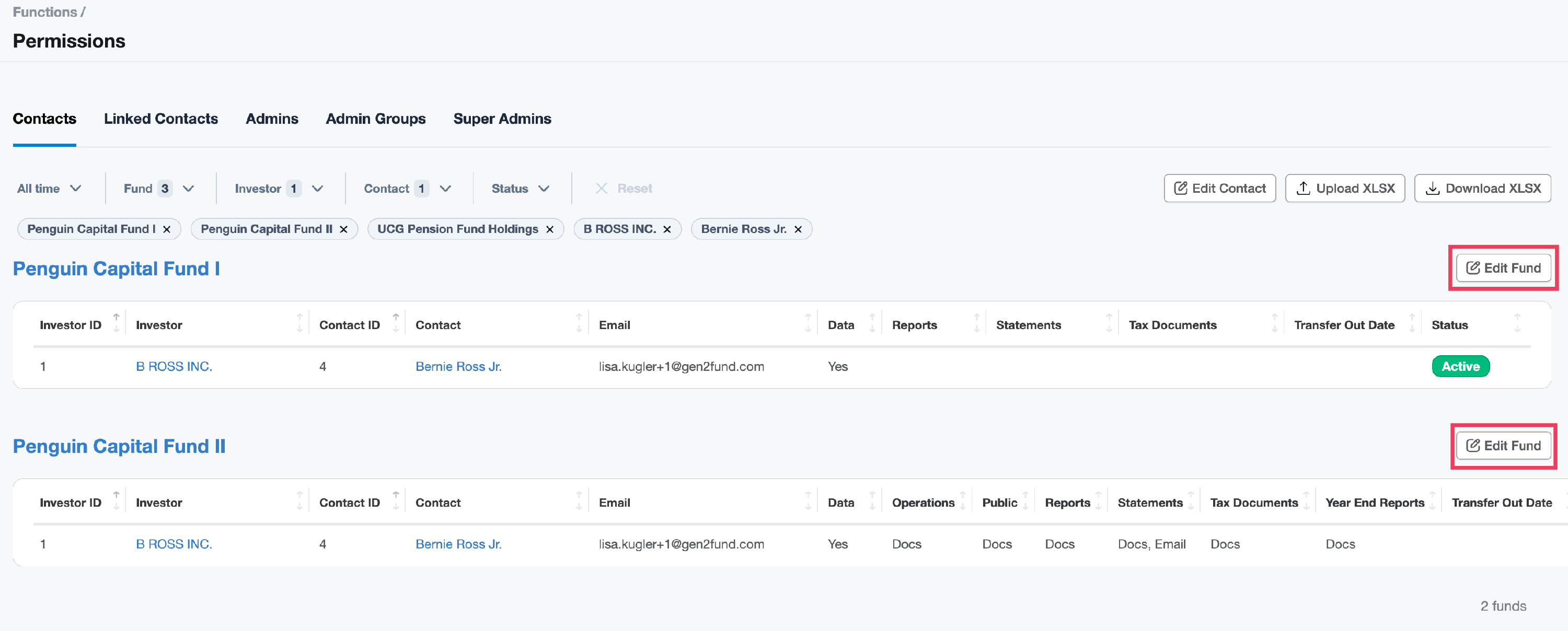
- Navigate to Functions - Permissions. By default, Contact Permissions are organized by Fund and then by investor ID.
- Use the dropdown menu to Filter by Fund, Filter by Investor, or Filter by Contact. You can select multiple options available when filtering, or, click Reset to clear the filters.

-
Click the Edit Fund button located above the table on the right for the related fund.
-
Use the checkboxes to determine if the contact will have data, document and/or email permissions for the folder of the related fund. Click Save.

Edit Permissions for Single Contact
IMPORTANT: This workflow allows you to edit permissions for a specific contact across all related funds and investors.
- Navigate to Functions - Permissions.
-
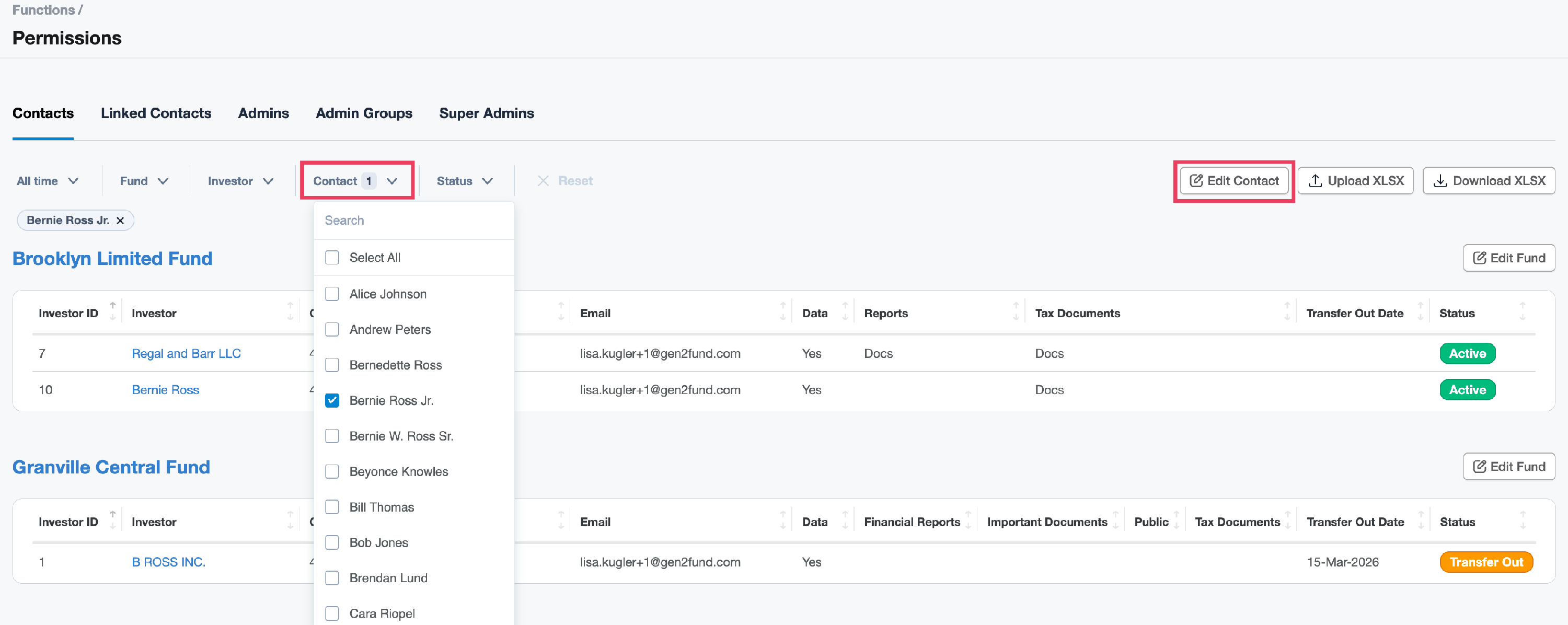
Use the Contact filter to select the related contact to edit permissions. Then, click the Edit Contact button located in the upper right corner.
-
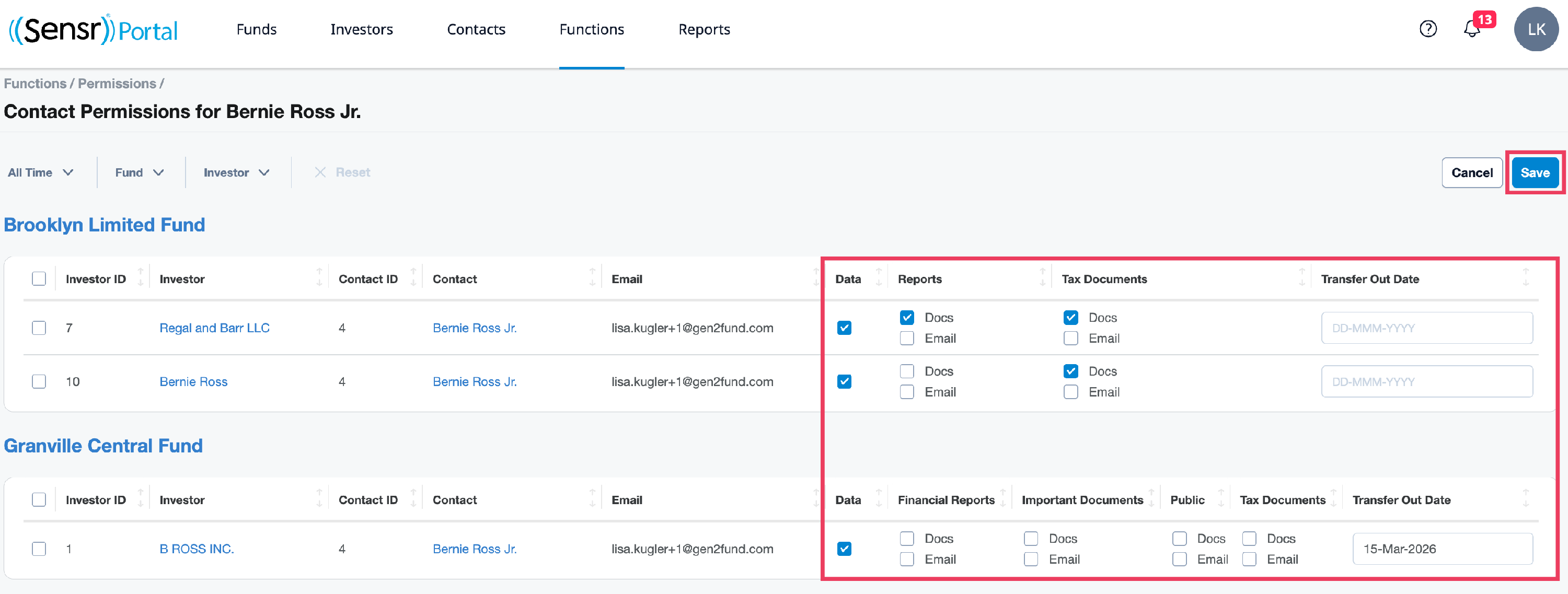
Next, use the checkboxes to make your changes and click Save when done.
Edit Permissions from the Fund Page
- From the Fund page, click on the Permissions tab. Use the dropdown menu to Filter by Investor or Filter by Contact as needed. You can select multiple options available when filtering.

- Click Edit to access the Edit Permissions page.
-
Use the checkboxes to determine if the contact will have document and/or email permissions for the folder name column header in the fund. Use the Data column to set financial data permissions and set Transfer Out Date, if needed.
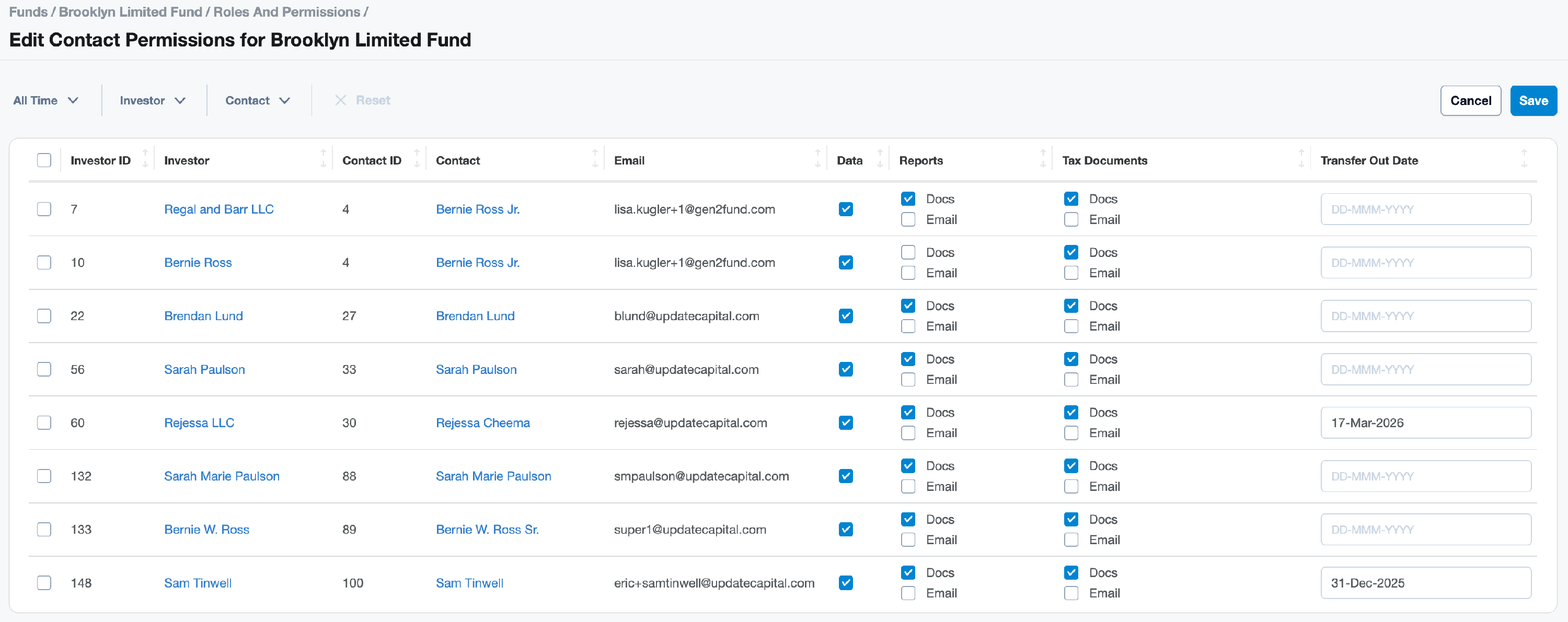
- Click Save.
Bulk Upload Permissions
If you need to download and save the Permissions page for future reference or bulk upload an existing Permissions file, please refer to the details below to effectively take these actions.
-
Click the Download XLSX button to download current permissions.
- Locate the related fund on the downloaded document and make permissions modifications under the following columns, as needed:
- Data - these are set at the fund level. Data permissions for each row should be exactly the same, as shown in column H below.
-
Document and Email - these are set at the folder level, as show in columns J and K below.

IMPORTANT: Upload will fail if Data permission for a contact is different across multiple folder rows. For example, if cell H-3 is blank the upload will fail.
- Save the changes to the document. Click the Upload XLSX button to upload the modified document and bulk upload the changes made to the permissions.