
Add a New Contact
IMPORTANT: By default, the permissions for contacts (including data, folder - documents and folder - email) are disabled and required to be enabled via Functions: Permissions - Contacts.
Create a Contact
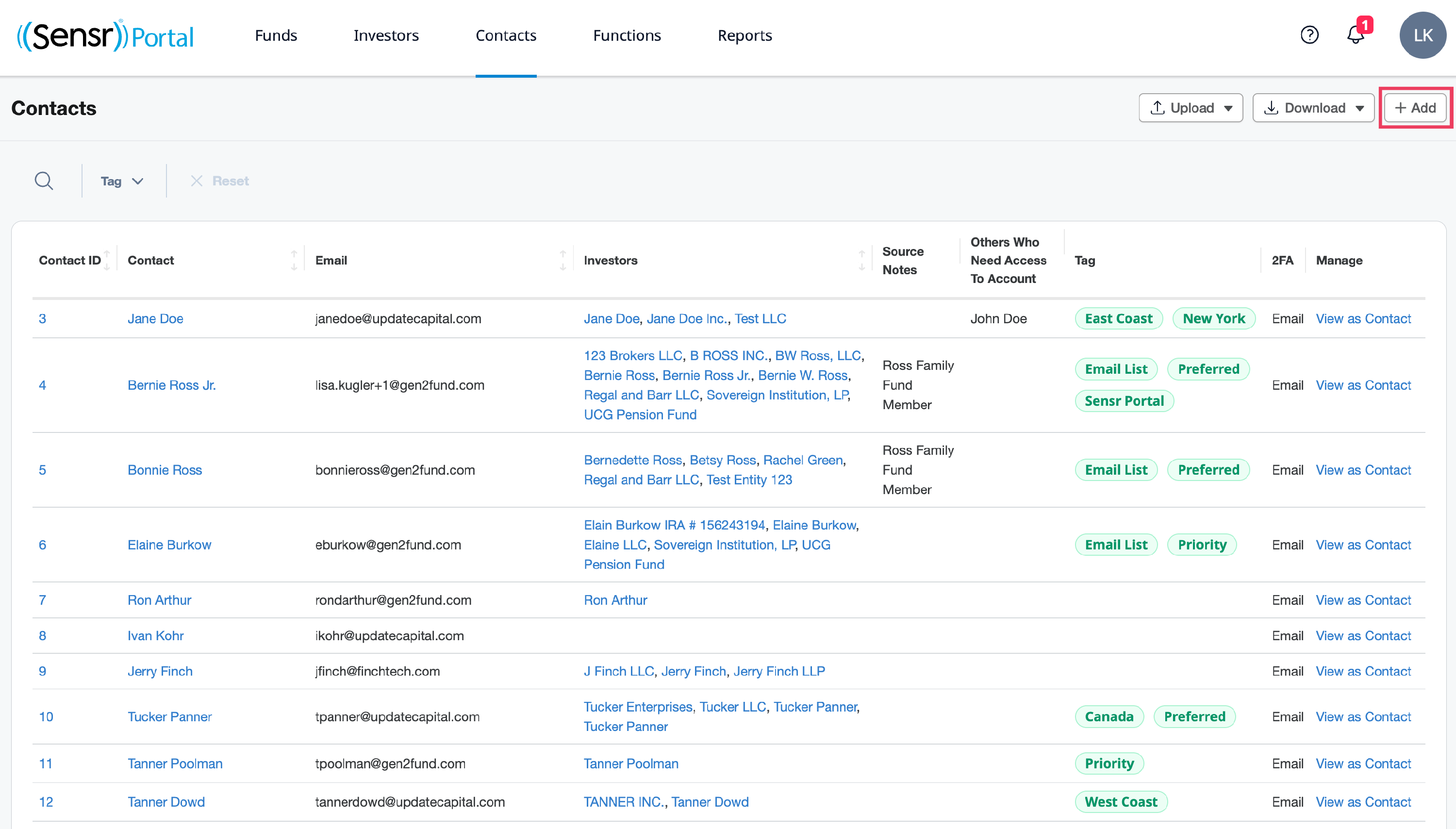
- Click on the Contacts tab.
-
Click + Add.
- On the New Contact page, enter the user details. Full Name and Email are required fields; all other fields are optional. Expand the Additional information to view other CRM filed information and Tags. Here you can also add Alt. emails (separated by commas). Each of these Alt. emails will be CC'd on all communications that come from the portal except password reset emails.

- Click Save.
NOTE: To assign tags to your contact, refer to the article Functions: Tags.
Finally, invite the new contact to sign into the portal using the password reset functionality.
How to Bulk Add Contacts
-
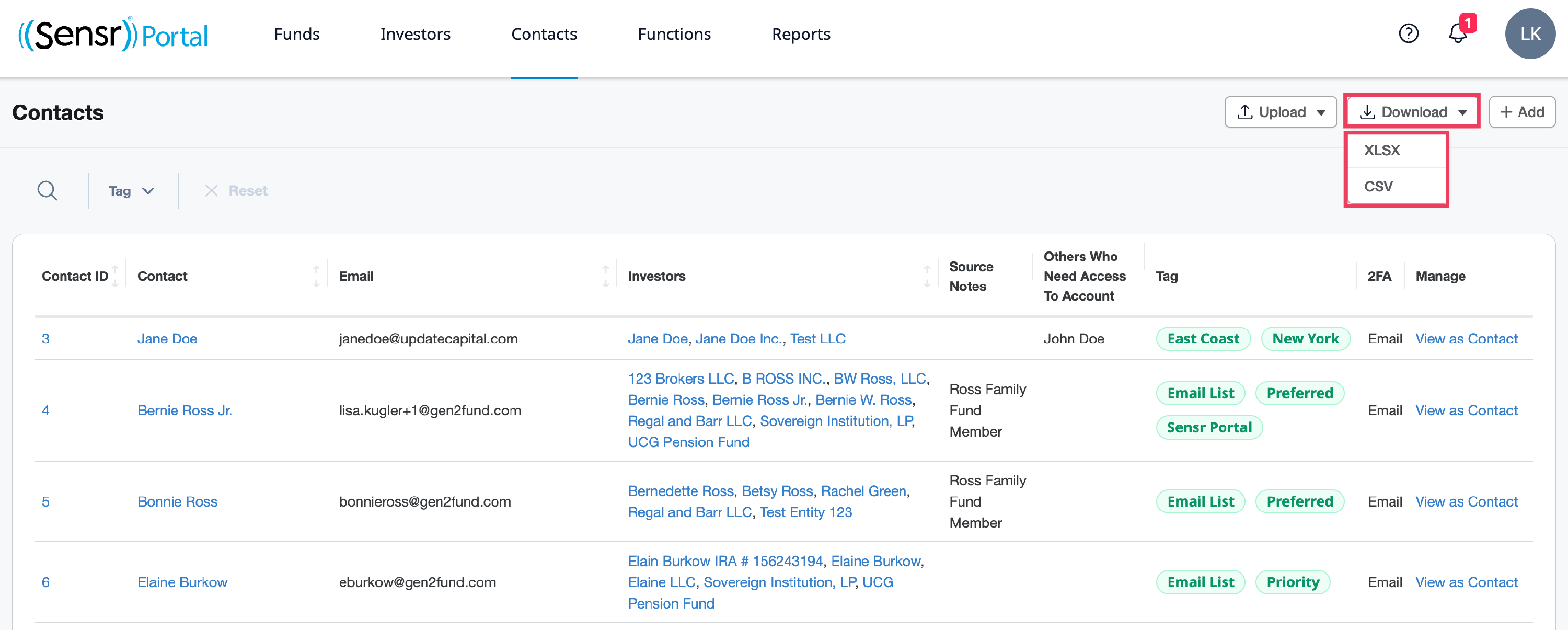
From the Contacts tab, click on the Download button and select the preferred template type: XLSX or CSV to download the template.
- On the downloaded template, add the contacts you want to bulk add to the portal.
- Contact ID can be left blank.
- Contact is mandatory.
- Contact Email Address is mandatory.
- Click the Upload button when ready to bulk add the contacts using the completed template.
IMPORTANT: No duplicate email addresses are permitted.
TIP: Contact Client Success if you need assistance updating contact assignments in bulk.