
Manage Pinned Documents
Overview
Admins can pin PDF documents in the portal to prioritize specific documents - such as legal, compliance, recent announcements - and keep them at the top of the document list, regardless of document assigned date. This functionality make it easier for investors to quickly locate key files. New documents can be pinned in bulk during upload in the File Wizard, or existing documents can be pinned later from the Documents tab using the edit option.
Identify Pinned Documents
Pinned documents are easy to identify. Look for the pin icon located to the right of the filename.


NOTE: Pinned documents on the investor view are visible on the Documents page and Investment Details: Documents Tab.
IMPORTANT: Contacts will only see pinned documents they already have access to.
Create Pinned Documents
Pinned documents can be created in two ways:
-
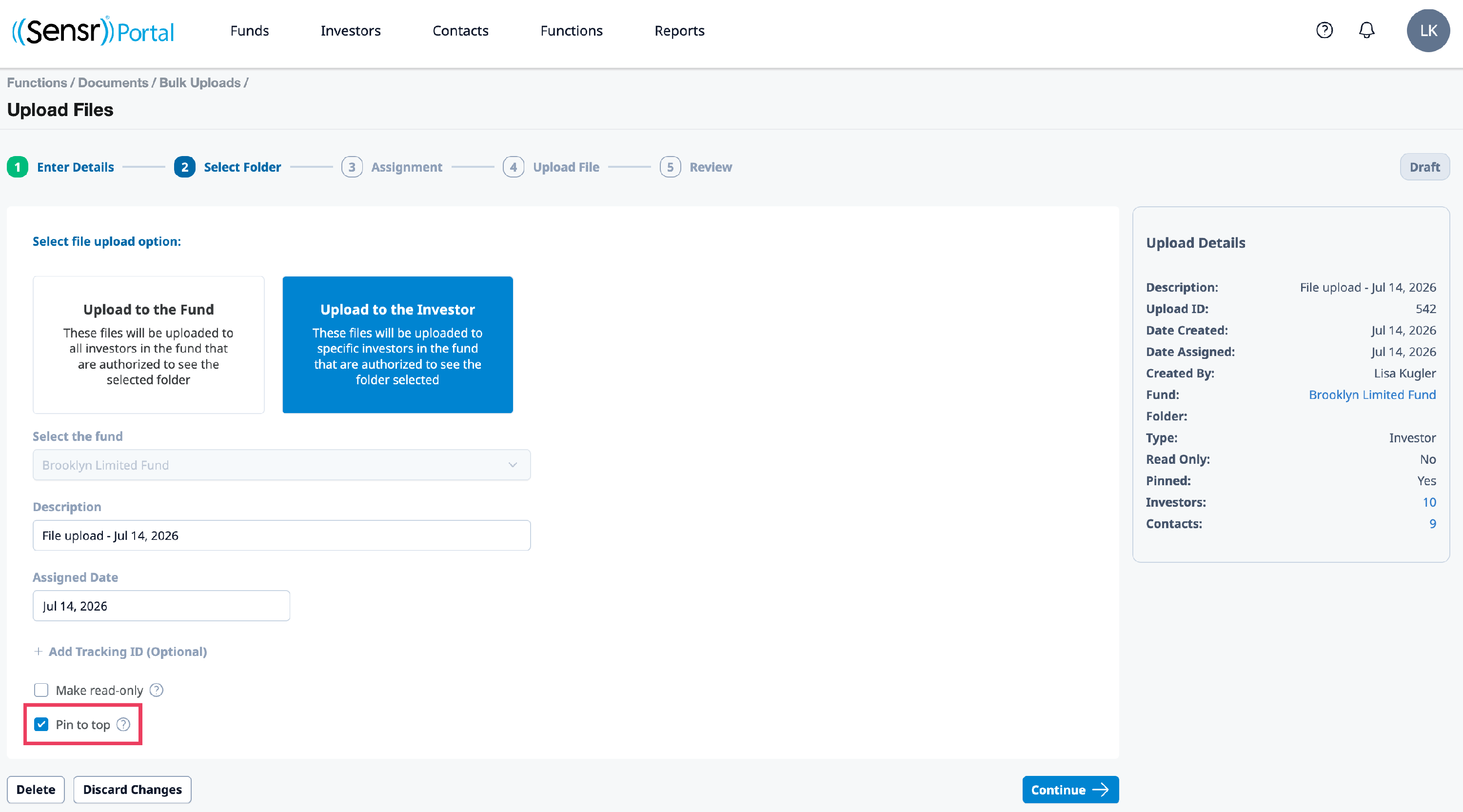
File Wizard - Step 1: Enter Details, use the checkbox to pin a document to the top when new documents are uploaded
-
Existing Documents - navigate to the Documents tab on either the Fund, Investor, or Contact Details pages. Use the Edit option located under the Manage column to select Pin to top checkbox and click Save.
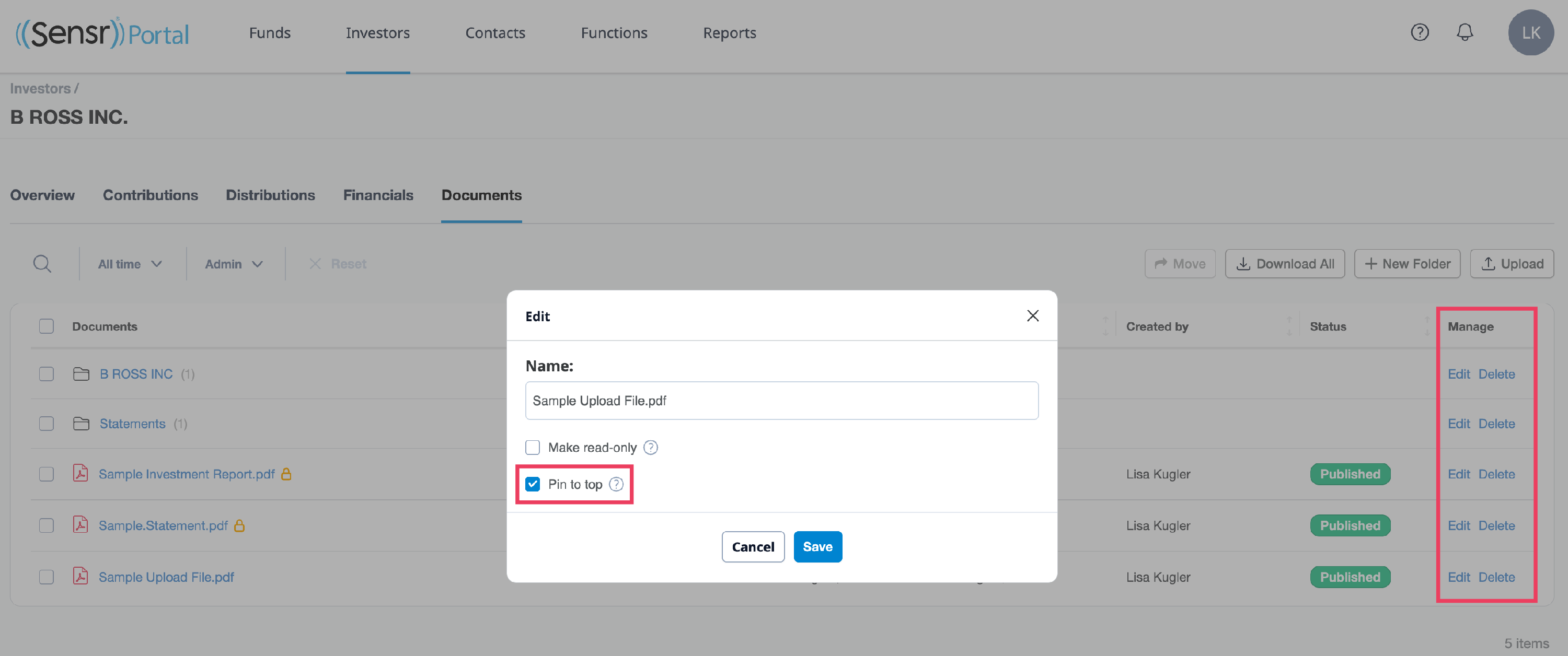
TIP: To remove a pinned document, locate the related document, click Edit under the Manage column and uncheck the Pin to top checkbox before clicking Save.