Functions: Communications
The Communications page provides information related to all aspects of communications on the portal, including emails and newsletters. The page is organized in tabbed format based on communication type. The first tab you land on is the Emails tab.
Access the Communications Page
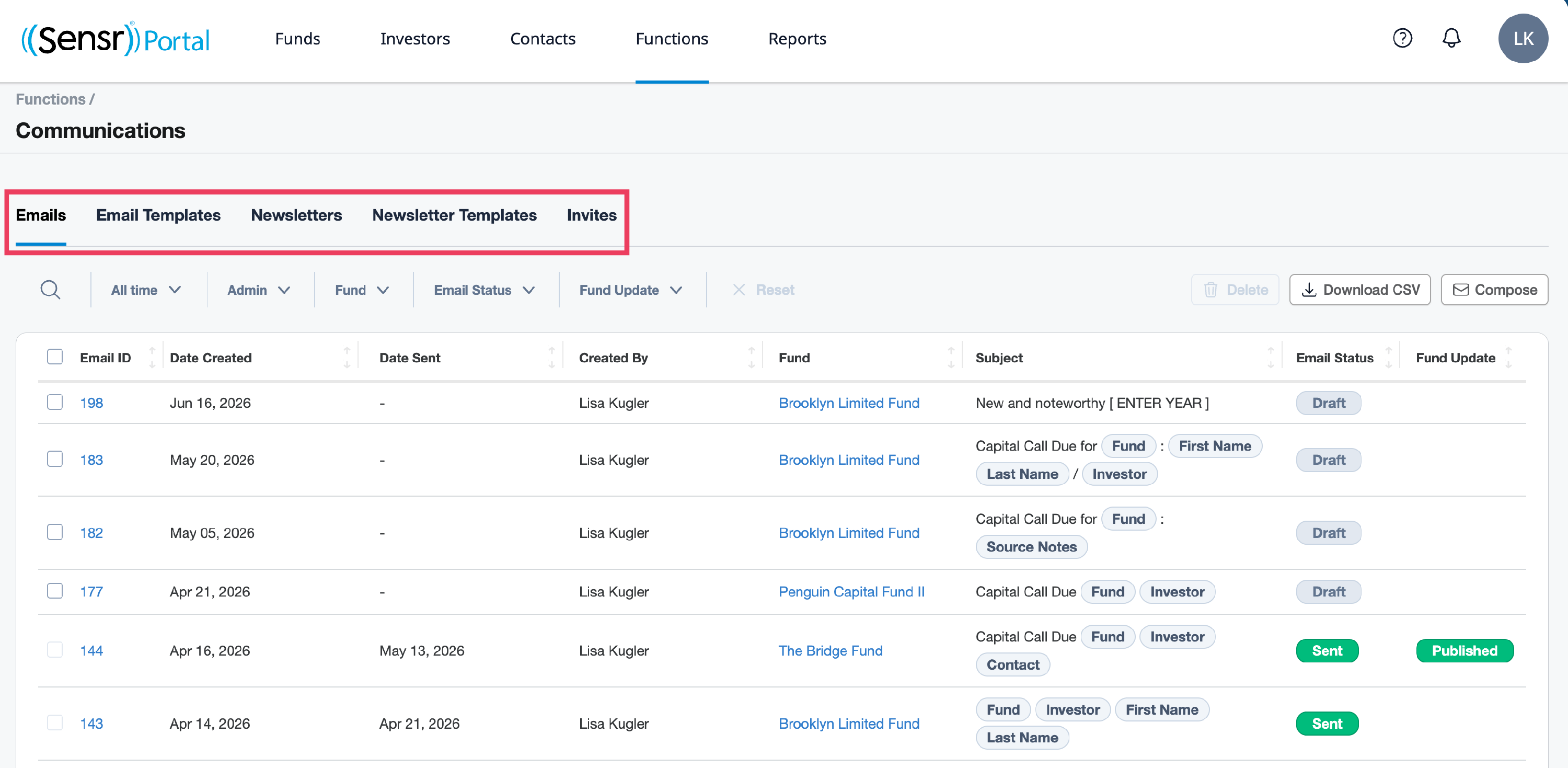
- To access the emails report tool, navigate to Functions → Communications.
-
The page is organized by tabs grouped by communication type: Emails, Email Templates, Newsletters, Newsletters Templates, and Invites. Click on the related tabs to meet your communication needs.
Emails
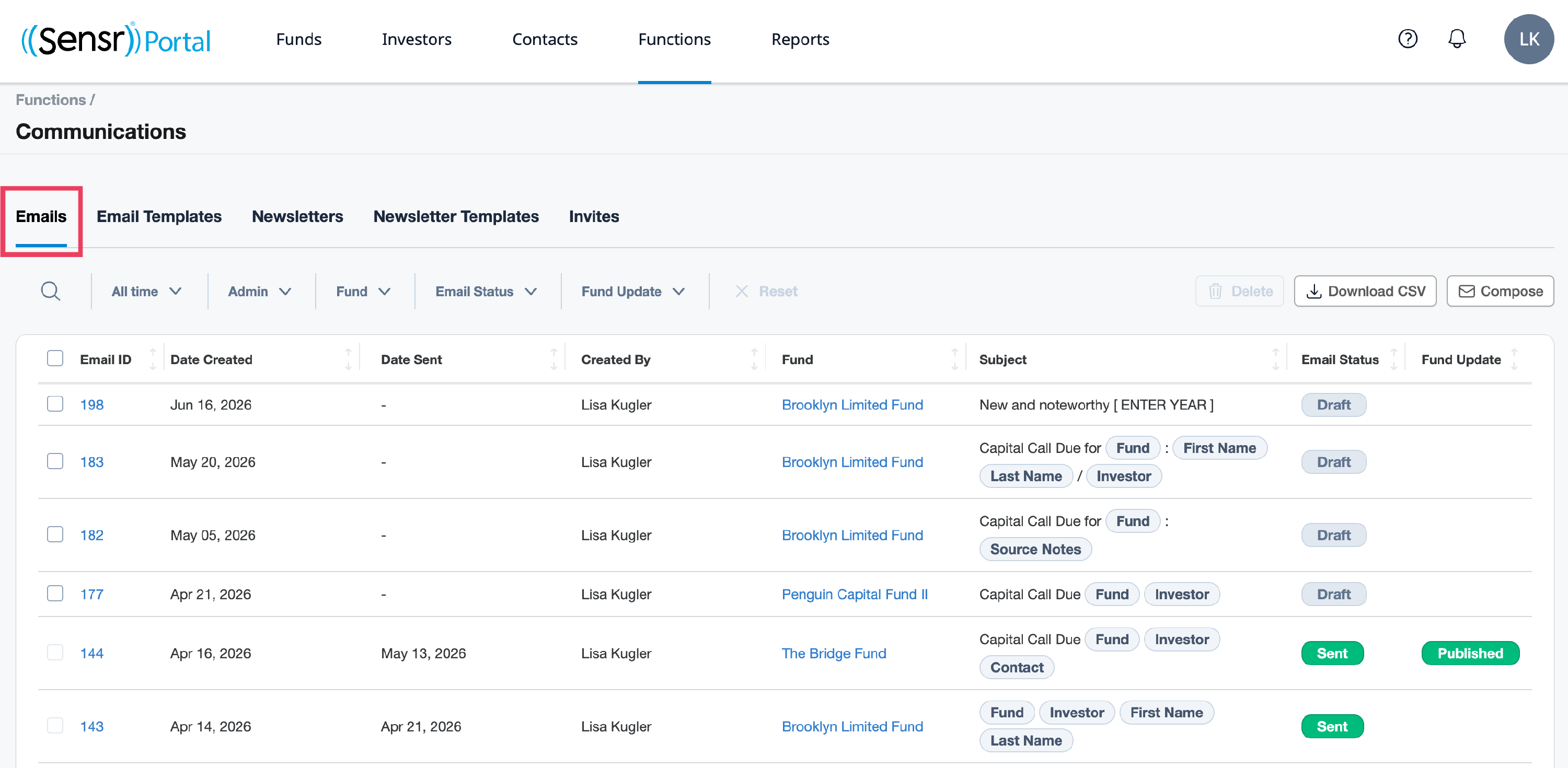
The Email report provides a breakdown of all emails sent out from the portal. Filters are available above the table to locate specific emails, regardless of status. The Email Wizard workflow can be launched from this tab to send emails as well as publish emails as a fund update, as needed.
- Email ID - opens the email wizard in the relevant step
- Date Created - the date the email was created
- Date Sent - the date the email was most recently sent
- Email Status - review the columns for email status
- Fund Update - review the column for Fund Update status.
Email Templates
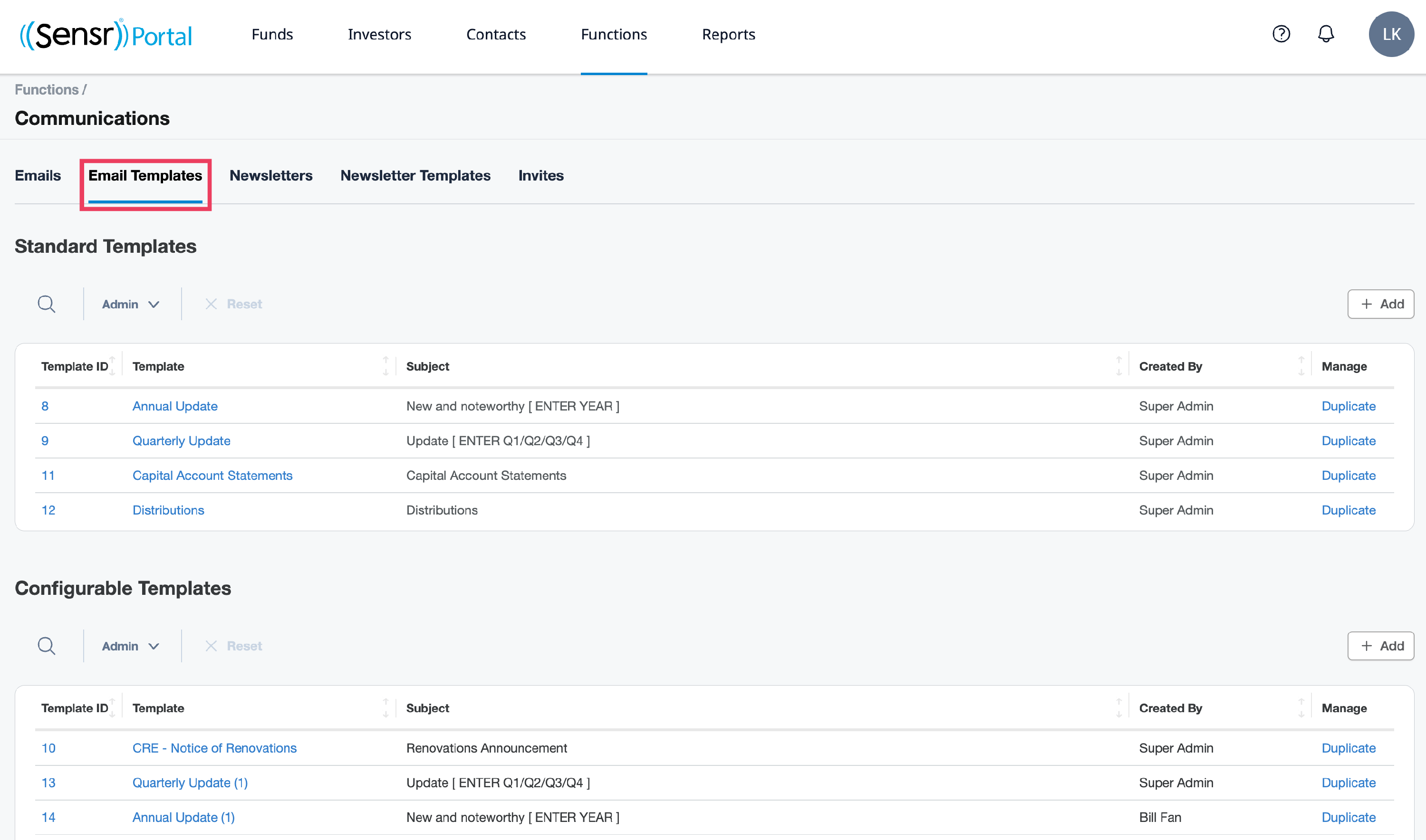
Admins can use pre-made, standard templates and create configurable templates for specific scenarios, such as Capital Calls, Distributions, Tax, and Legal purposes. To save time, configurable templates can be duplicated, edited and saved to repurpose for recurring scenarios. For more information, refer to: Email Templates.
Newsletters
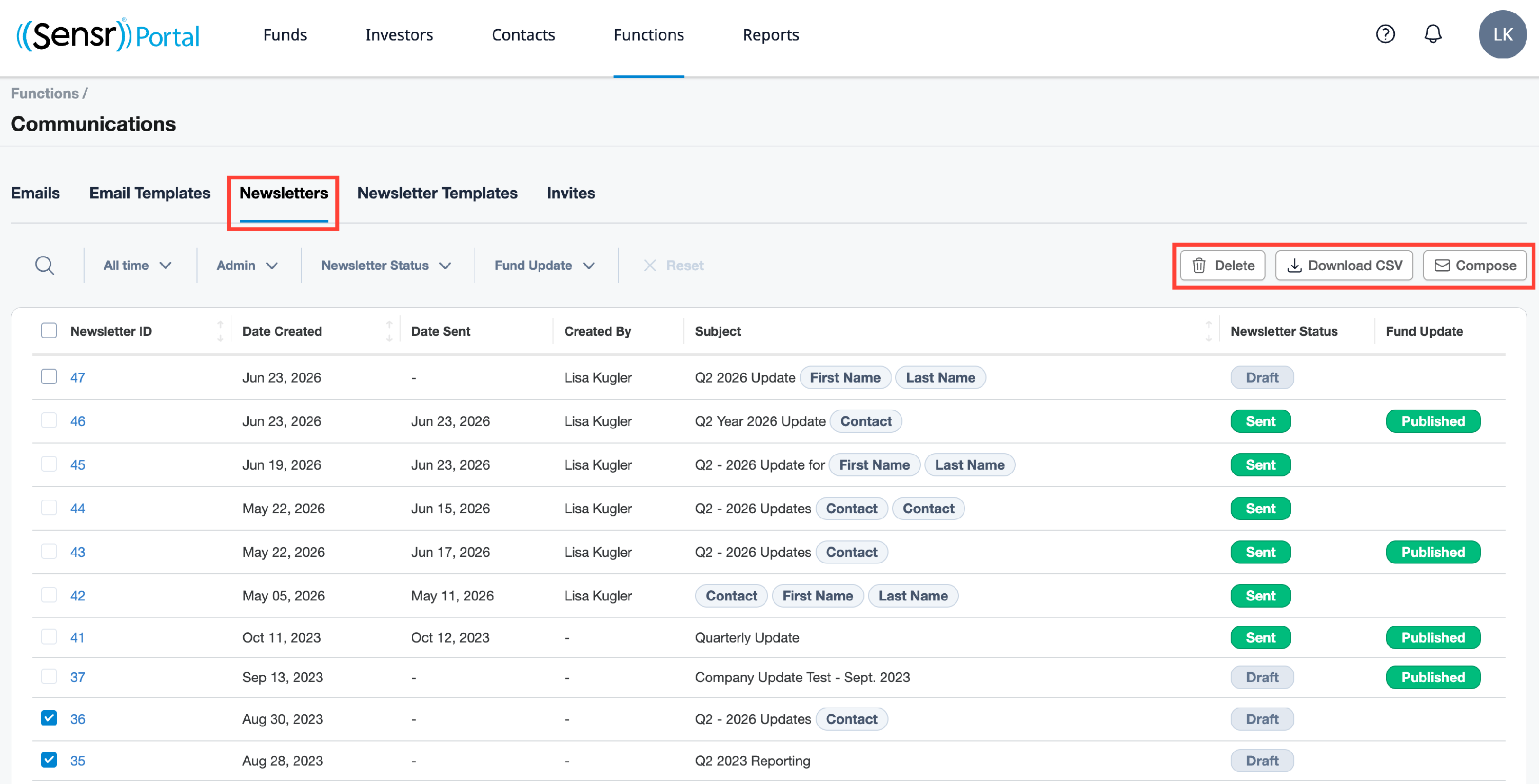
Newsletters can be leveraged for multiple scenarios such as company updates to be sent to all software users or multiple fund updates to be sent to groups of users in one clear and concise newsletter. The Newsletters tab includes information related to all newsletters created, their status: Sent, Draft and as well as Fund Updates and whether or not they have been published. Admins can create a new newsletter, modify and delete existing newsletters on this tab. For more information, refer to the article: Create and Distribute Newsletters.
Newsletter Templates
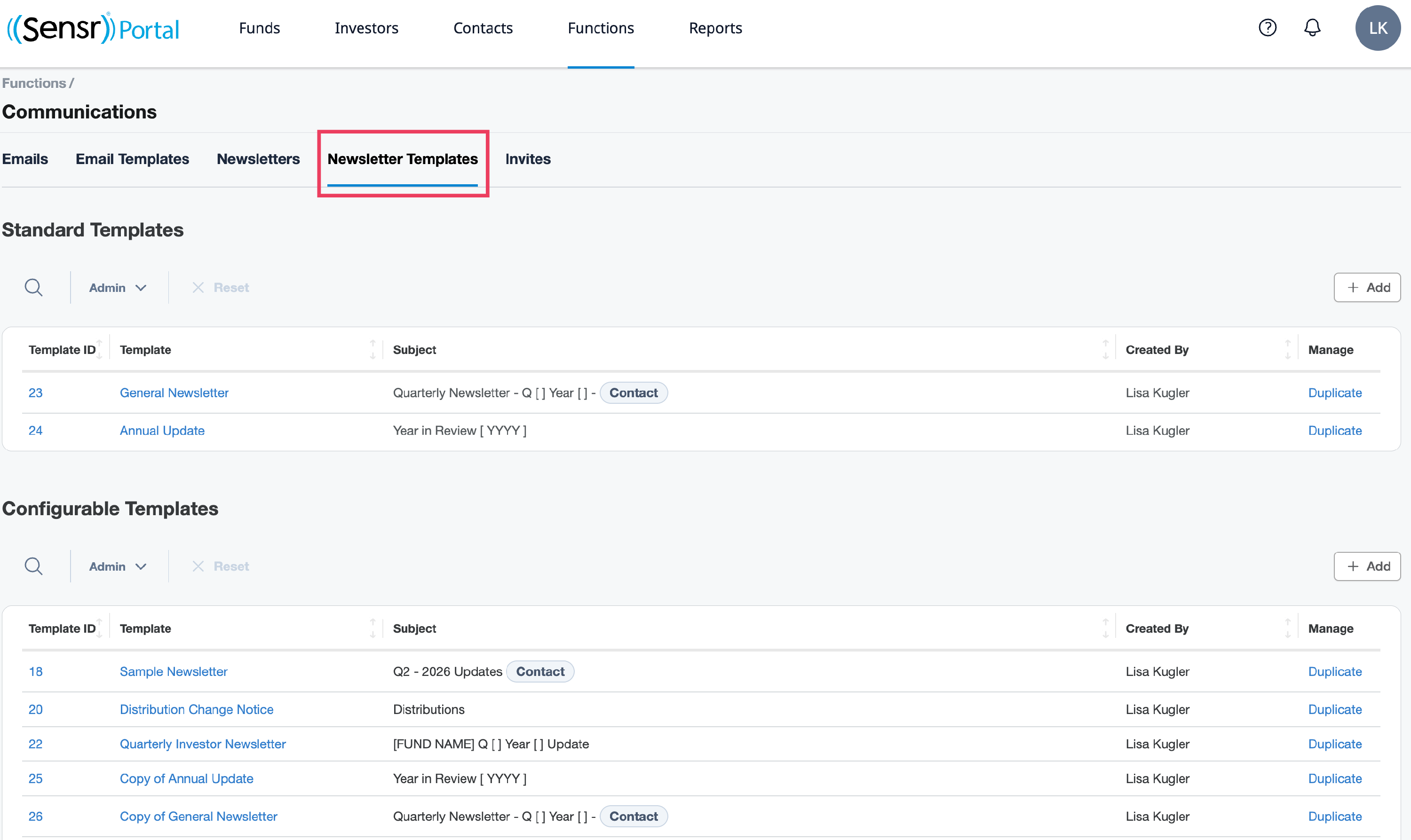
Admins can use pre-made, standard templates and create configurable templates for general announcement purposes. To save time, configurable templates can be duplicated, edited and saved to repurpose for recurring scenarios. For more information, refer to: Newsletter Templates.
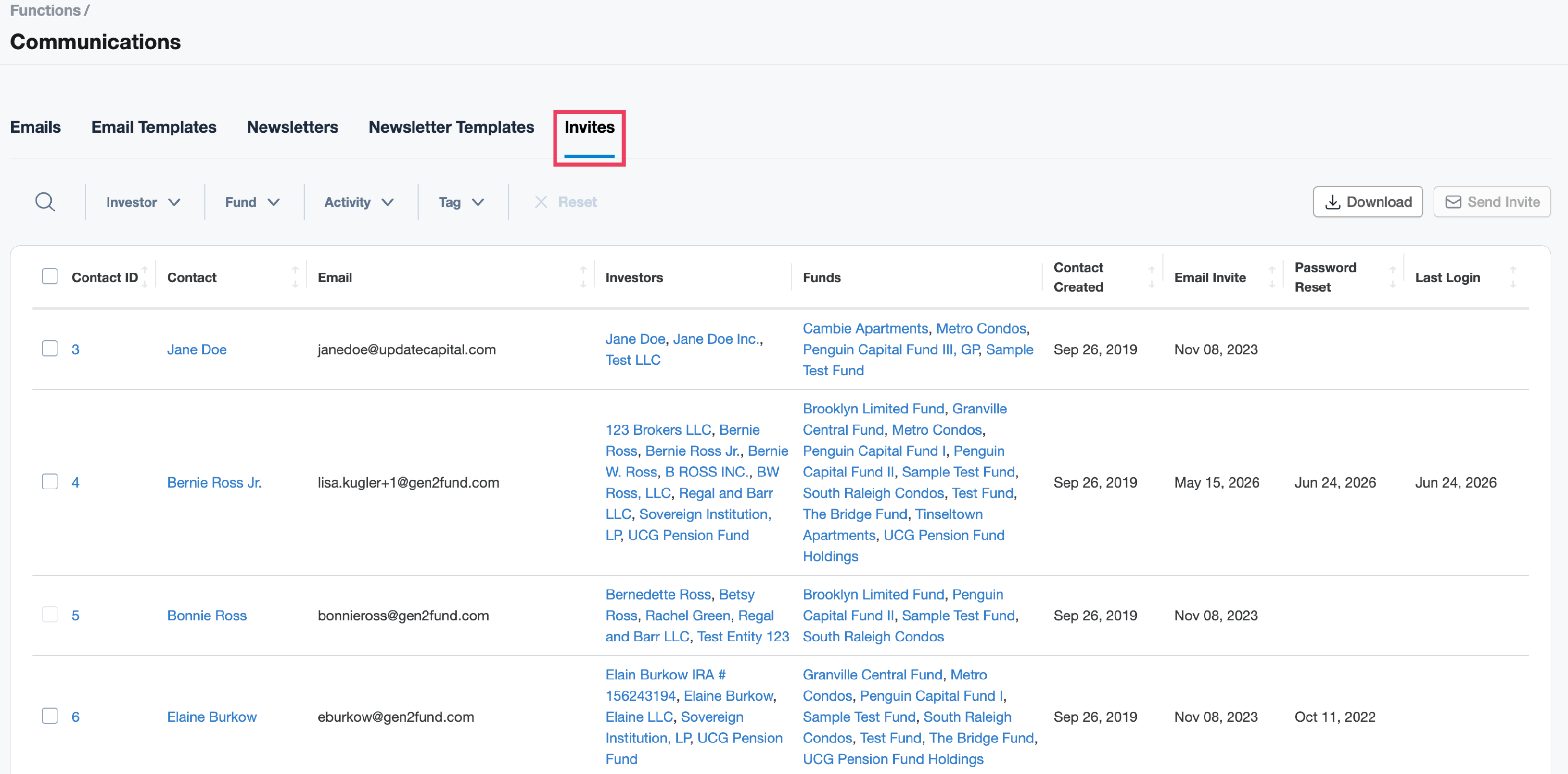
Invites
The Invites tab displays all information related to contacts that have been invited to access the portal, their email address, date the invite email was sent, last login and date created. Admins can download the list and send invitations from this tab as well. For more information refer to: Functions: Communications - Invites