
Fund Details Page: Overview Tab
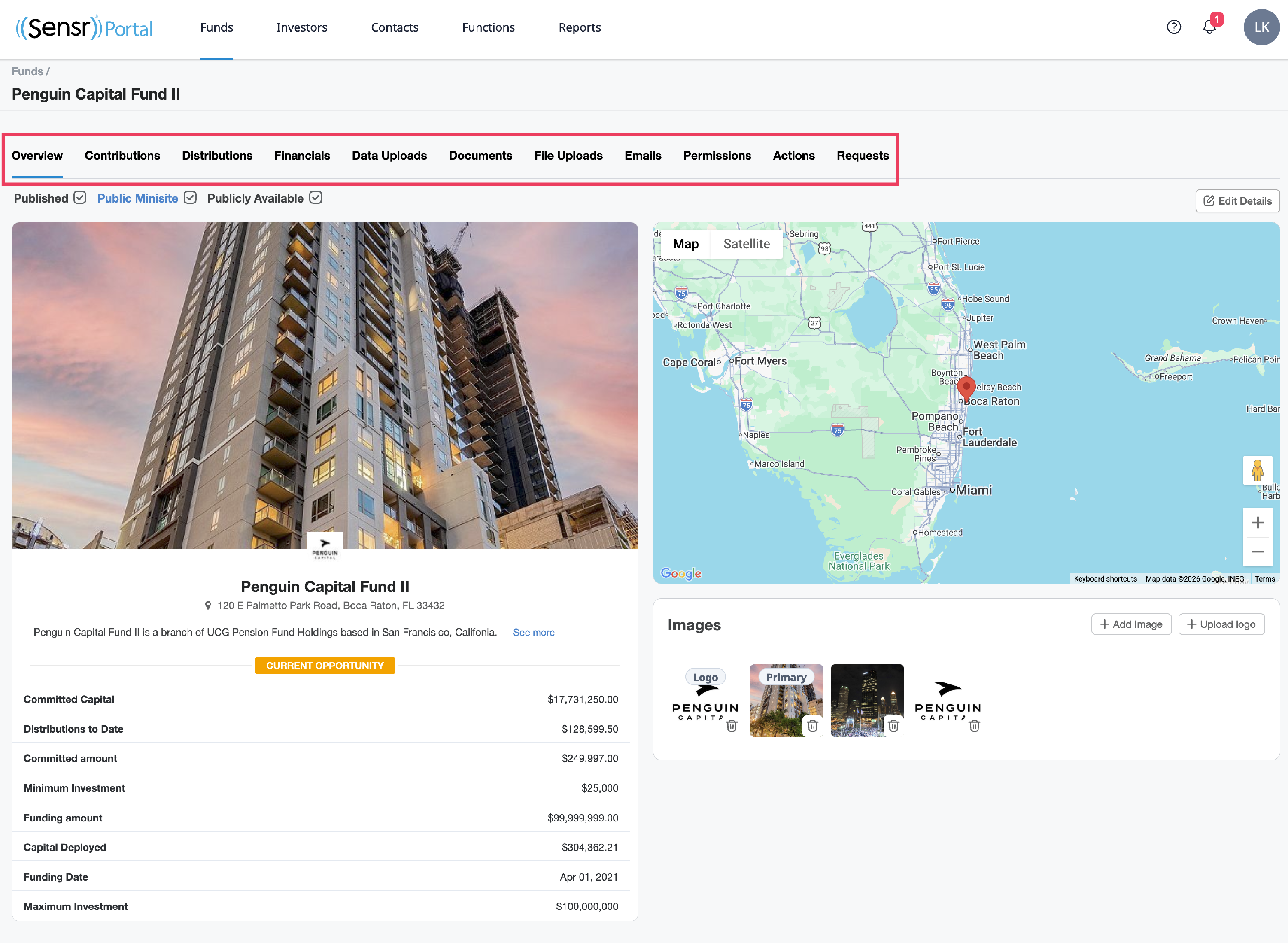
The Fund Details Page allows admins to access centralized information and perform various functions. The first tab is the Overview tab where admins can view the fund status, location and any images associated with the fund and easily modify the fund details by clicking the Edit Details button. Simply navigate between the tabs show below to access the desired content.
TIP: Use the Images section to add, upload and manage images related to the fund page as needed.
Fund Holdings
In the context of private equity, a "holding" is a sub-fund or a specific investment or sub-fund within a larger parent fund. Each holding represents a particular investment that the parent fund has made, and it is managed as part of the overall portfolio of the parent fund.
Manage Holdings
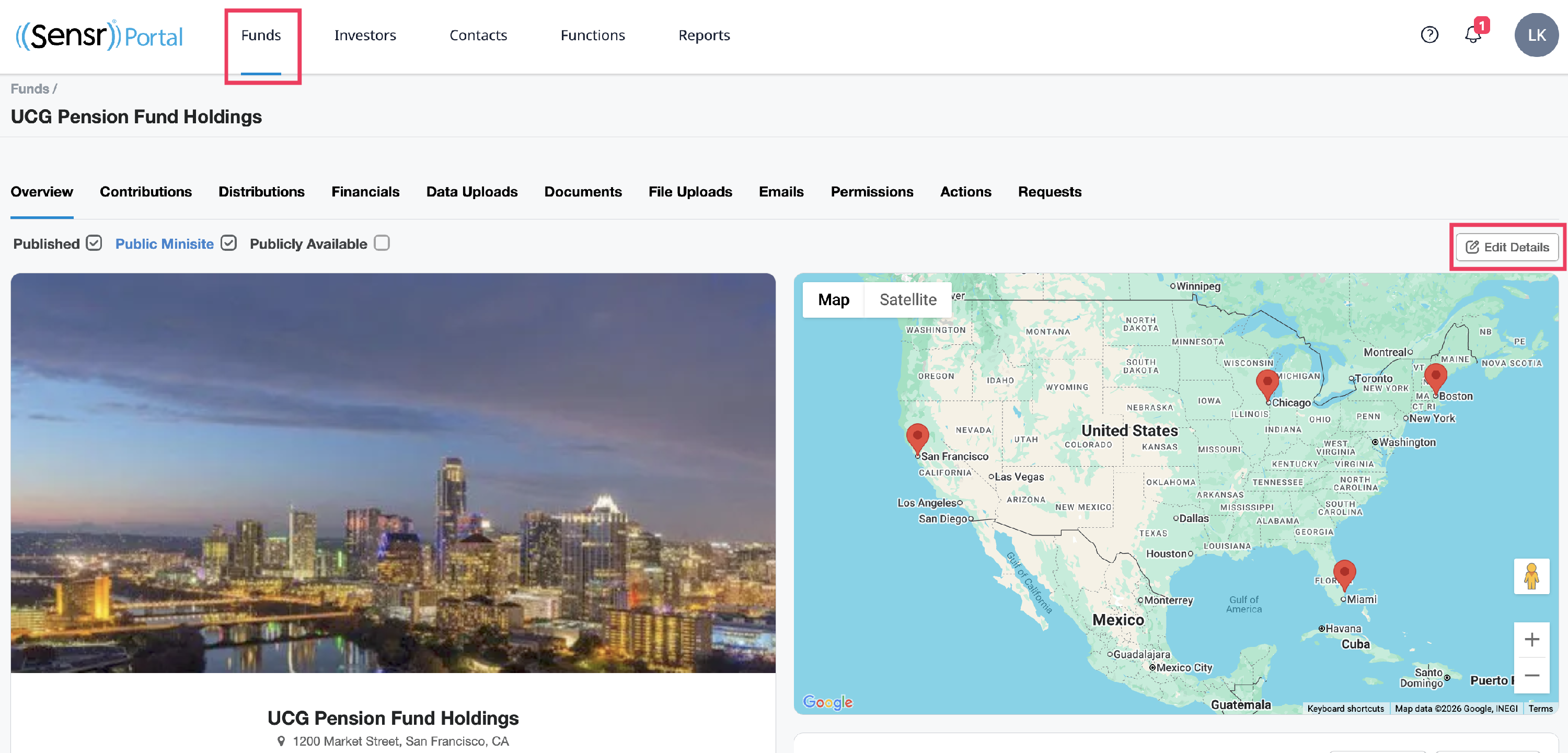
Admins can manage fund holdings using the Edit Details button located in the upper right. Scroll to the bottom of the Edit Fund page and use the checkboxes to select the fund (s) assets as required.
Where are Holdings Visible
Holdings are visible on the Fund Page Details: Overview on the Google map, as indicated above, provided the location is entered in the fund details.
How to Access Holding Details
Admins can access the Holding details by clicking on the map location marker, then the fund name to open the fund in a new browser tab. Admins can also use the View as Contact feature to access the fund and its holdings.

IMPORTANT: If a contact is unable to see a holding, make sure the following are in place:
- The contact has investments in the holding of the fund.
- The contact has been assigned view access to the fund.
If the contact has investmetns in the holiding they will be able to see their financial data and documents for that holding. However, if the contact has only been assigned view access to the holding, they will have limited view of the holding data and documents.
TIP: Contact Portal Support team for assistance with proper Holdings configuration.
Add Images to a Fund
- Manage the existing photos under the Images section.
- +Add Image to select an image.
- +Upload logo to select an image to use as a logo.
- To Delete an image, click the delete icon and click OK.
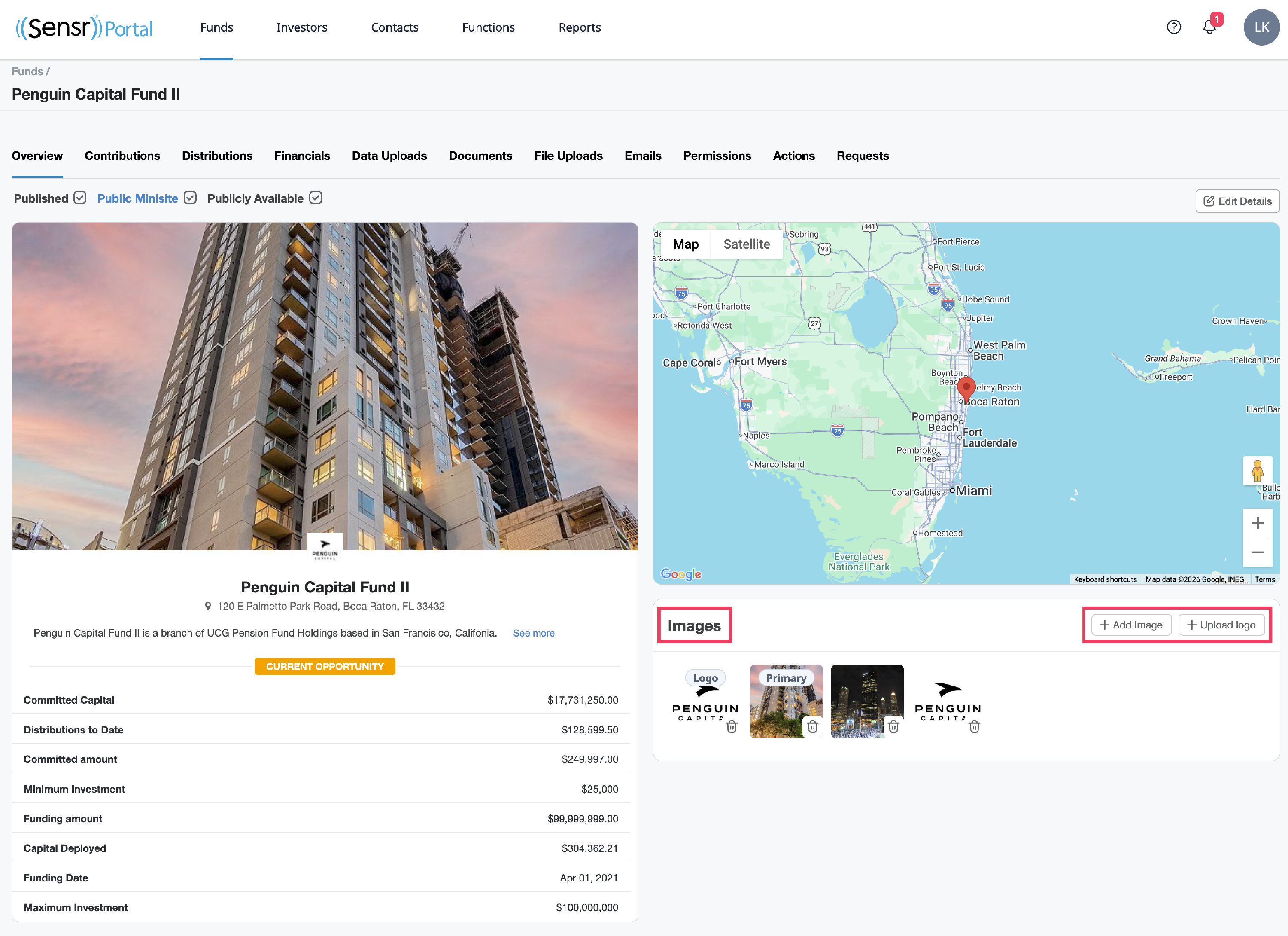
TIP: To set an image as primary, click the image and use the Set as Primary button.
Published vs. Public Minisite vs. Publicly Available
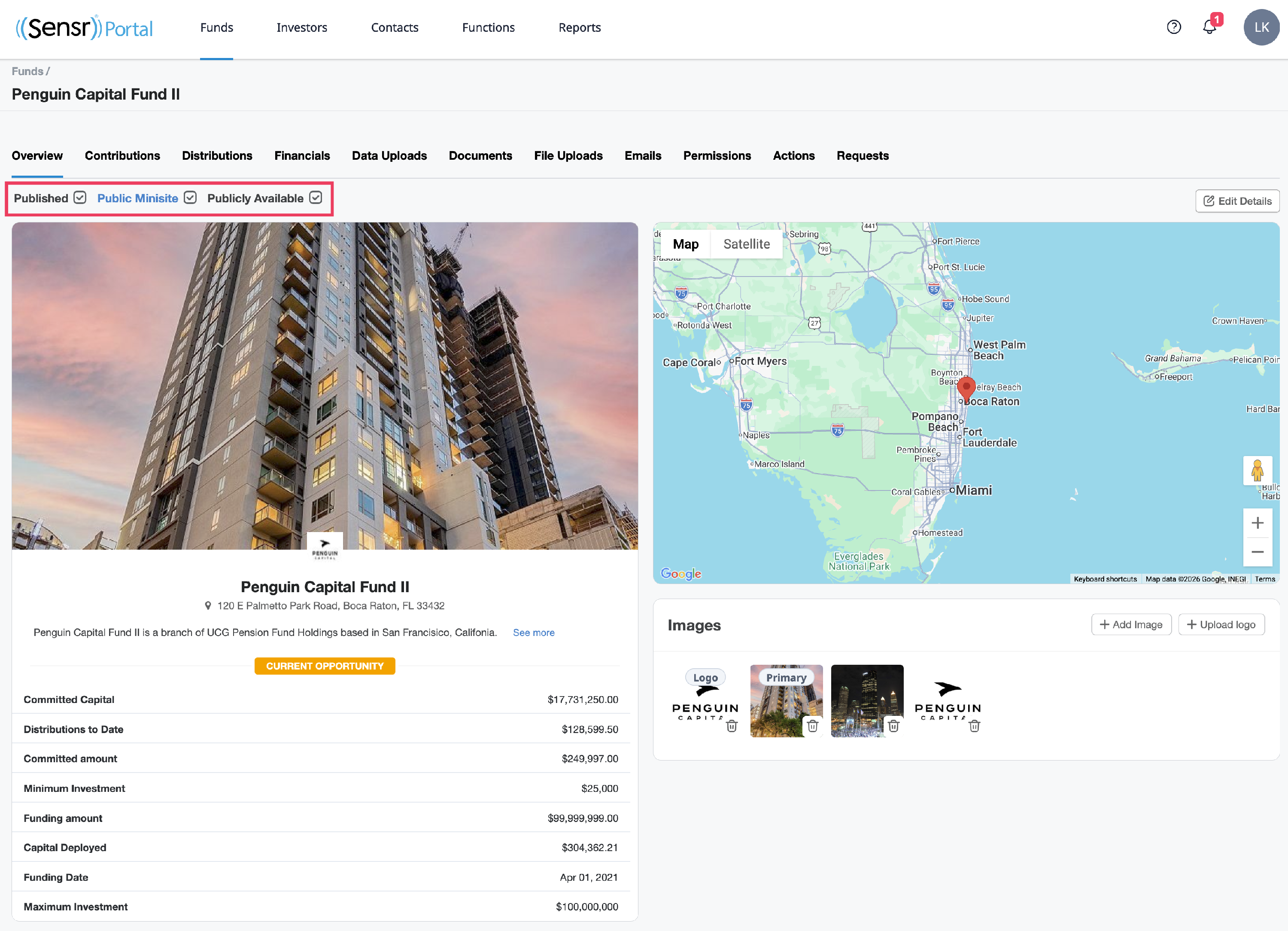
When creating a fund or editing fund details, admins will be presented with three check boxes that appear:
All three options can be simultaneously turned on, or off and offer different functionalities for different scenarios outlined below.
BE ADVISED: Upon request, the Public feature can be disabled to maintain the visibility of public files/folders within the app only. Once the Public feature is disabled, this means:
- The ability to post publicly (ie: Public Minisite and Publicly Available options) will be no longer available and the related checkbox will be greyed out
- Any documents that were previously published publicly will be removed from public view.
- This is an irreversible action
Reach out to customer success for more information if you would like to disable the Public feature.
Published
When a fund is published, it will be available on the Sensr Portal to any contacts to whom admins have granted access to the fund. Any contact who is an investor in the fund or any contact who has been granted access by an administrator will be able to see this fund when they are logged into the site.
IMPORTANT: If a fund is not published, it will only be available to admins in Sensr Portal.
Public Mini-site
A Public Mini-site is used to externally promote an opportunity. Properties that have the Public Mini-site feature enabled, have a public URL that allows contacts (logged in or not) to see the highlights of the fund/deal. The public URL is accessible to anyone - no authentication is needed. It will only show documents placed in the Public files only folder and will not present any information about a specific investment or distribution data. By default, a public mini-site for a current opportunity will not show the total amount you're raising (as opposed to a current opportunity presented to logged-in contacts).
IMPORTANT: The public URL is accessible to anyone - no authentication is needed. It will only show documents placed in the Public files only folder and will not present any information about a specific investment or distribution data.

Publicly Available
If Publicly Available is checked, any corporate website integrations you have created with Sensr Portal will be able to display this fund.
Funding Progress
This section can be configured for current opportunities in the following way:
- Click on Edit Details.
- In the Attributes section, ensure the Funding Amount field is completed.
- At the bottom of the page in the Funding Progress section check the box Present a meter with current funding information to users. and enter the Minimum amount and Maximum amount.
TIP: If you don't see the option to enable the Funding Progress Bar in the Fund - Edit Details page, reach to your Customer Success.
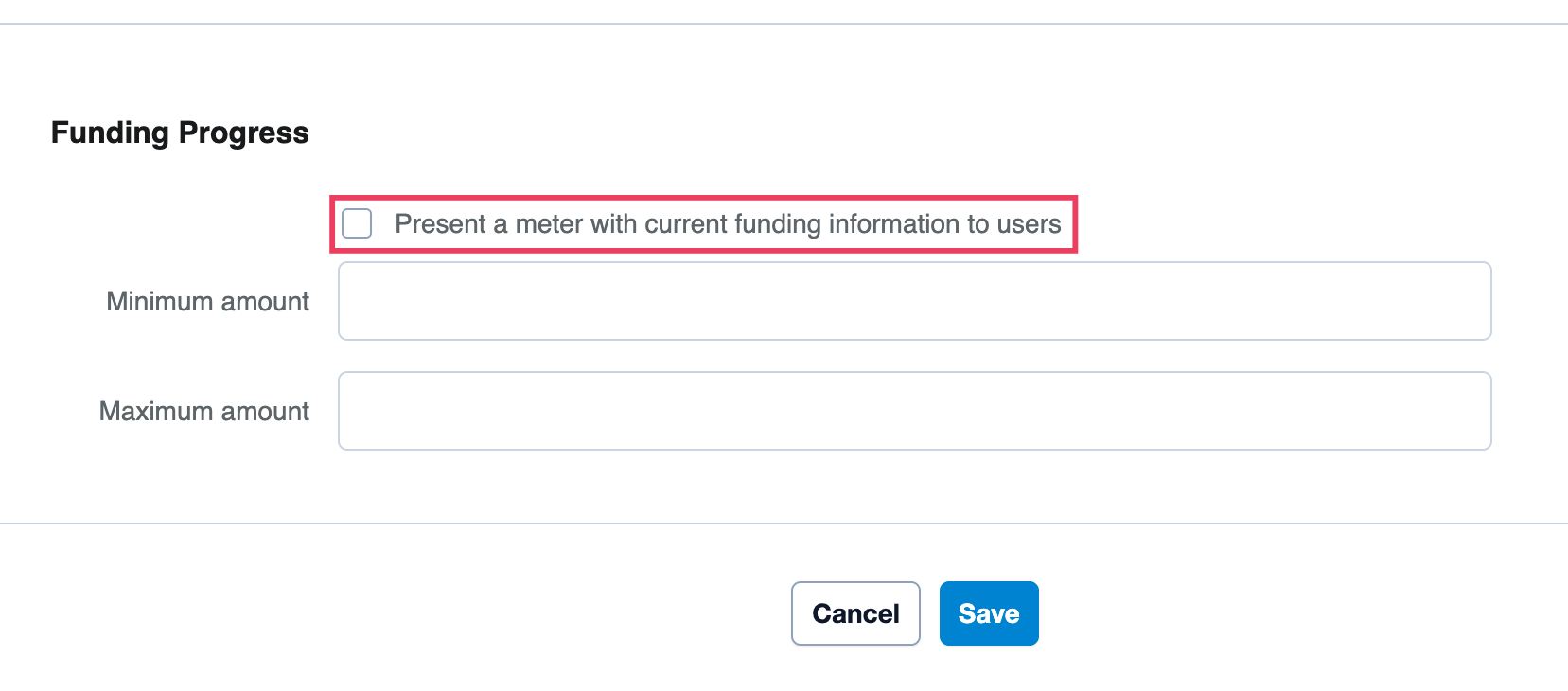
- Click Save. The meter will be displayed only if the total commitment is more thant the minimum and less than the maximum amount.